MC/DC Test Suite Generator
User manual · Windows
1. Introduction
MC/DC (Modified Condition / Decision Coverage) requires, for every condition in a decision, a pair of test cases that shows the condition alone changes the outcome of the decision. This program generates a test suite from a condition you type or from the decisions found in a source file, using the Robin's Rule algorithm.
- For a singular Boolean expression (SBE - every condition occurs exactly once) with N distinct conditions it produces exactly N+1 test cases that satisfy unique‑cause MC/DC.
- Two generation criteria are available, Unique‑Cause (Robin's Rule, N+1) and Masking, chosen with the toggle on the input card (section 2).
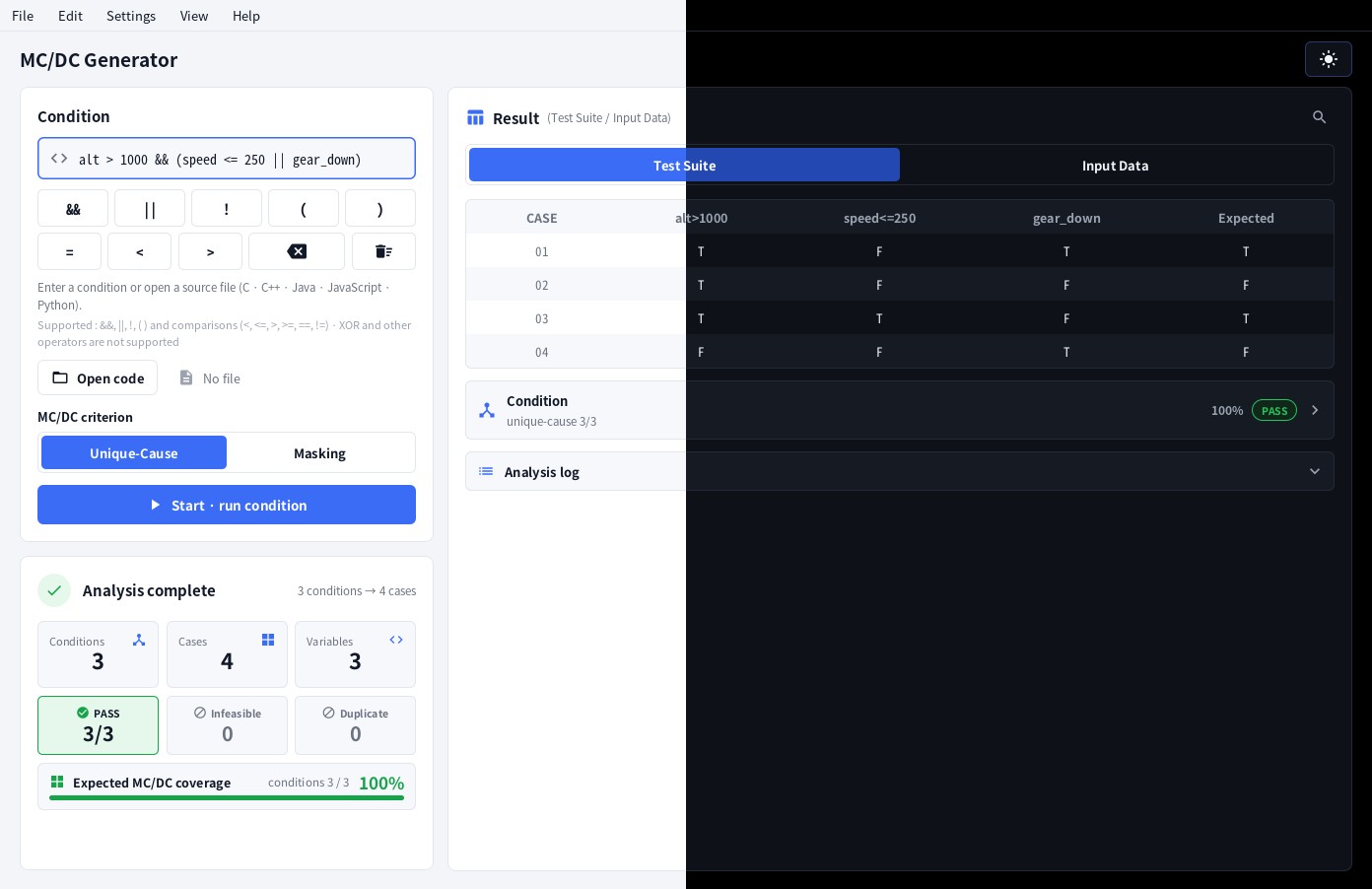
- Every result is checked afterwards (MC/DC Check): for each condition the program proves the independence pair. The Analysis complete screen shows PASS, FAIL or N/A.
- Besides the truth‑value table (Test Suite) it also proposes concrete input values (Input Data) for
comparisons such as
x > 10.
2. Quick start
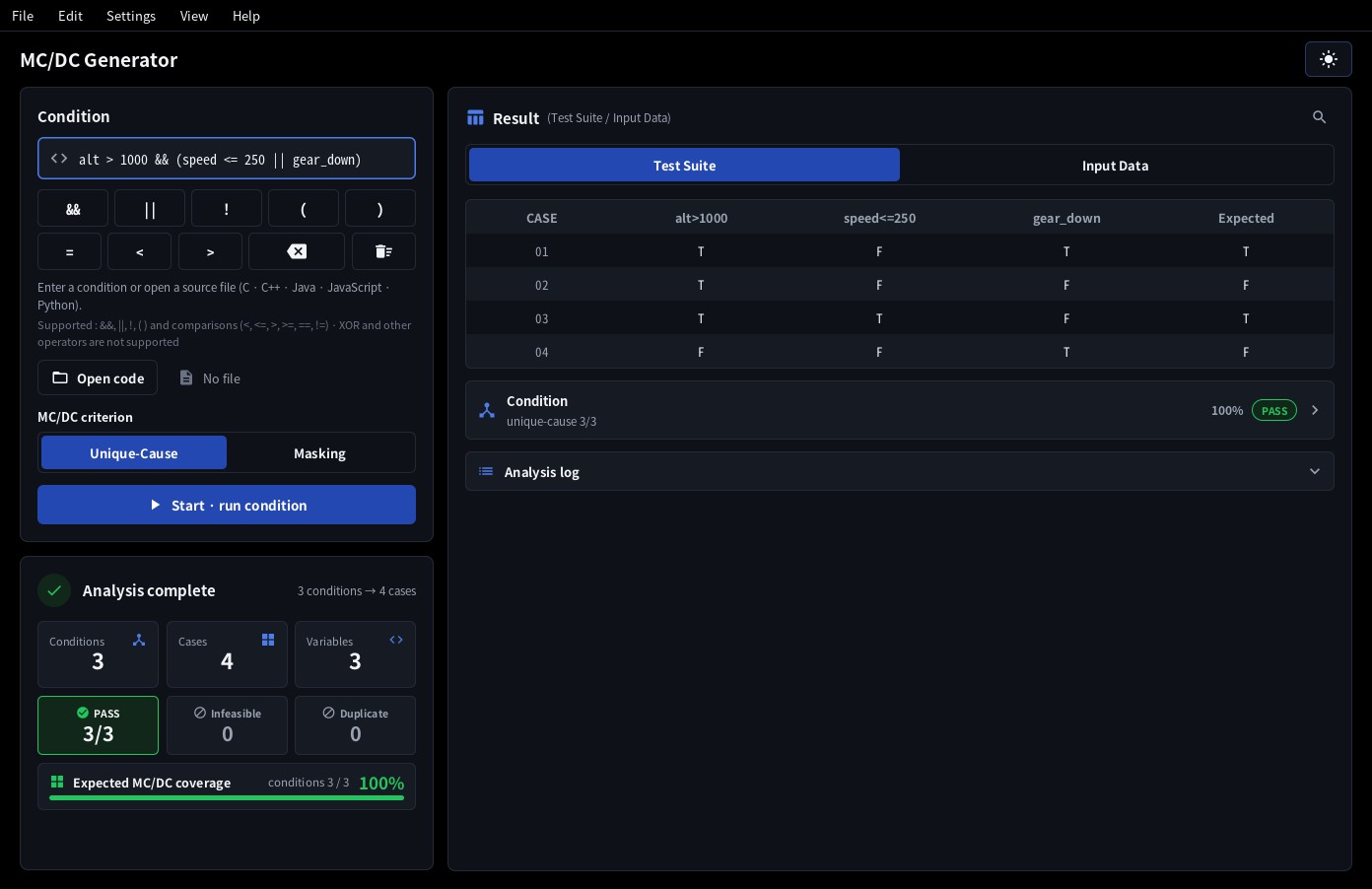
- Type a condition into the Condition box, e.g.
!(a && b) || c.
(Enter only the expression - withoutifand without the surrounding statement.) - Press Enter or click Start.
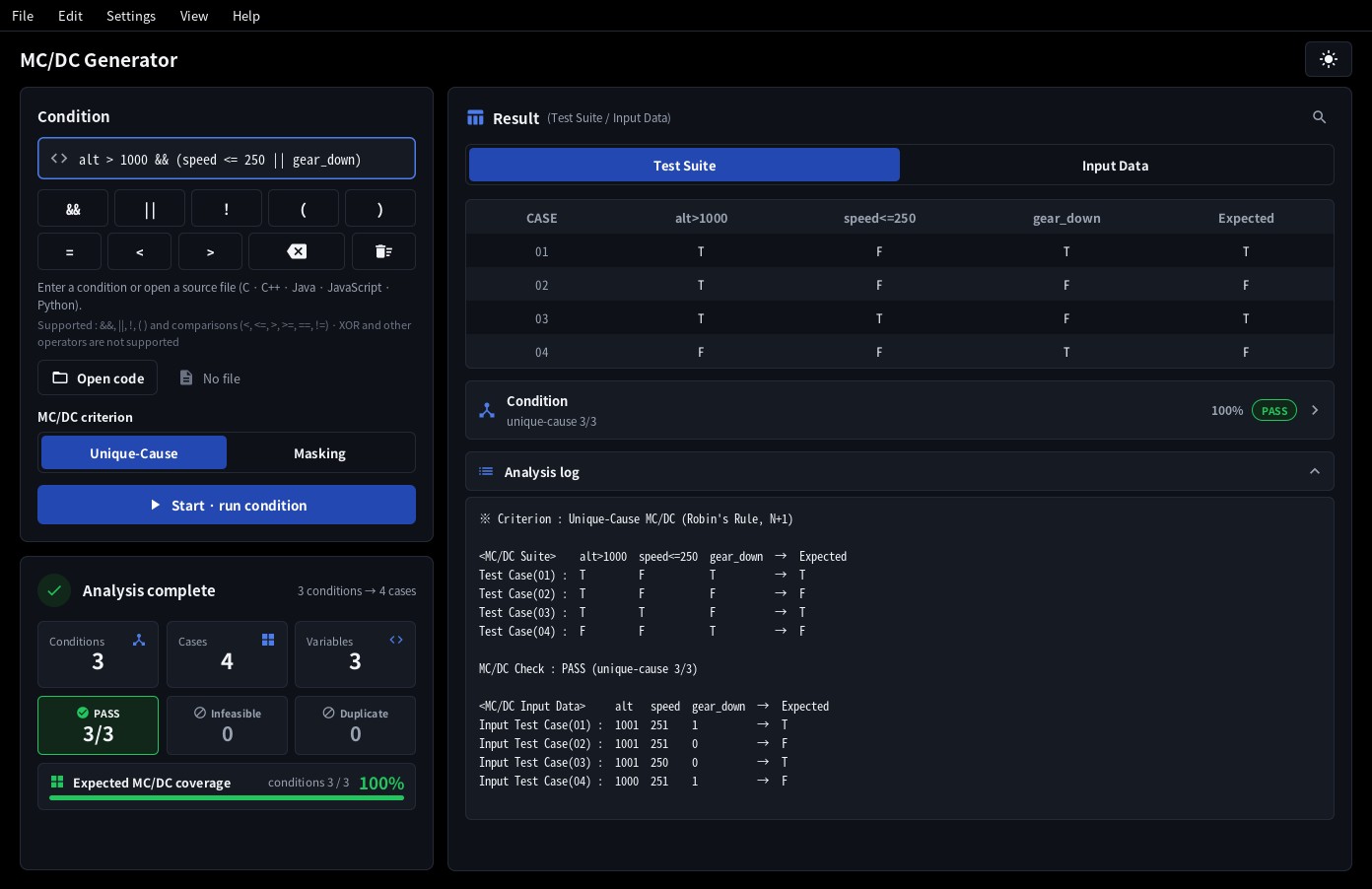
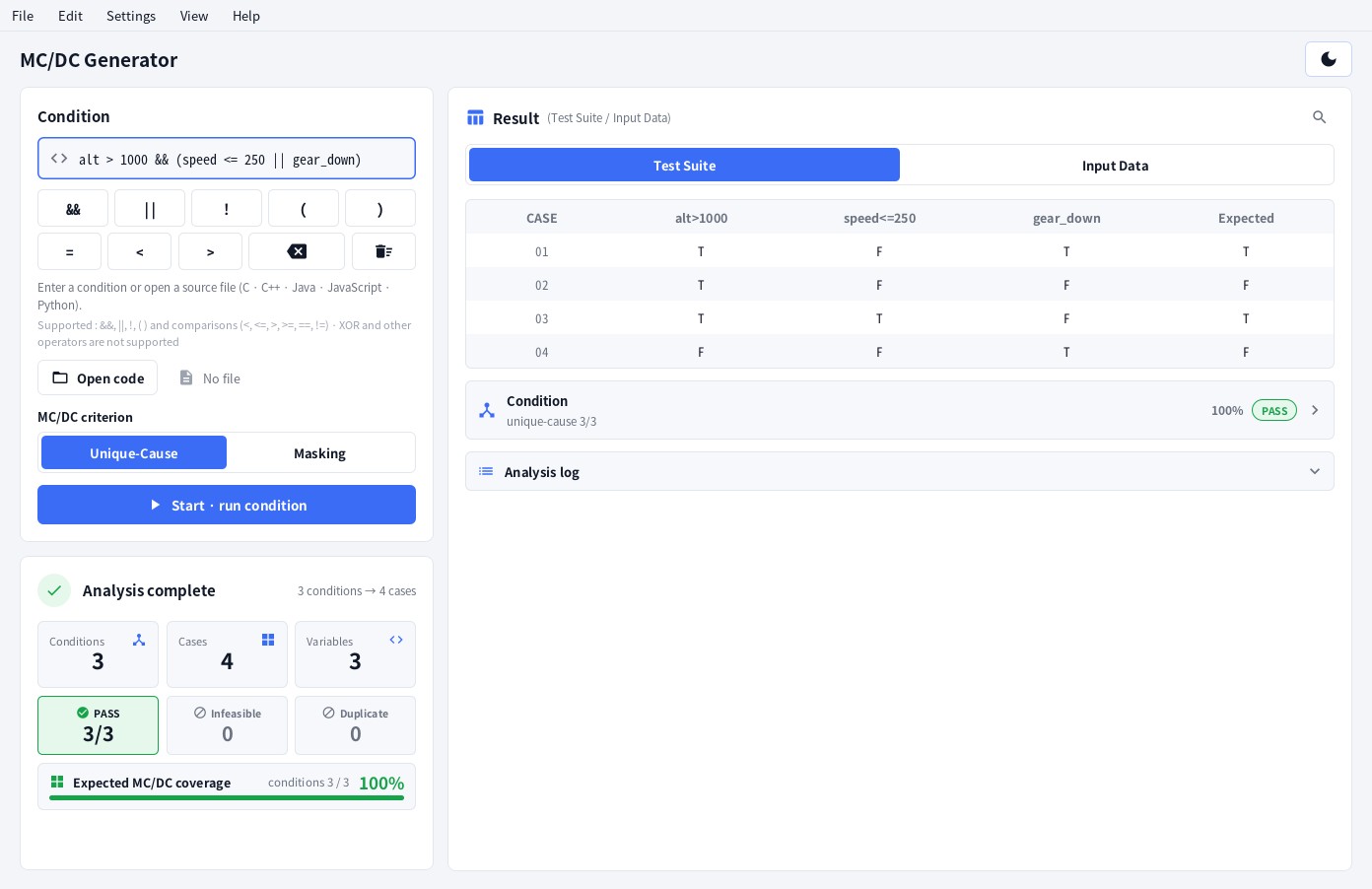
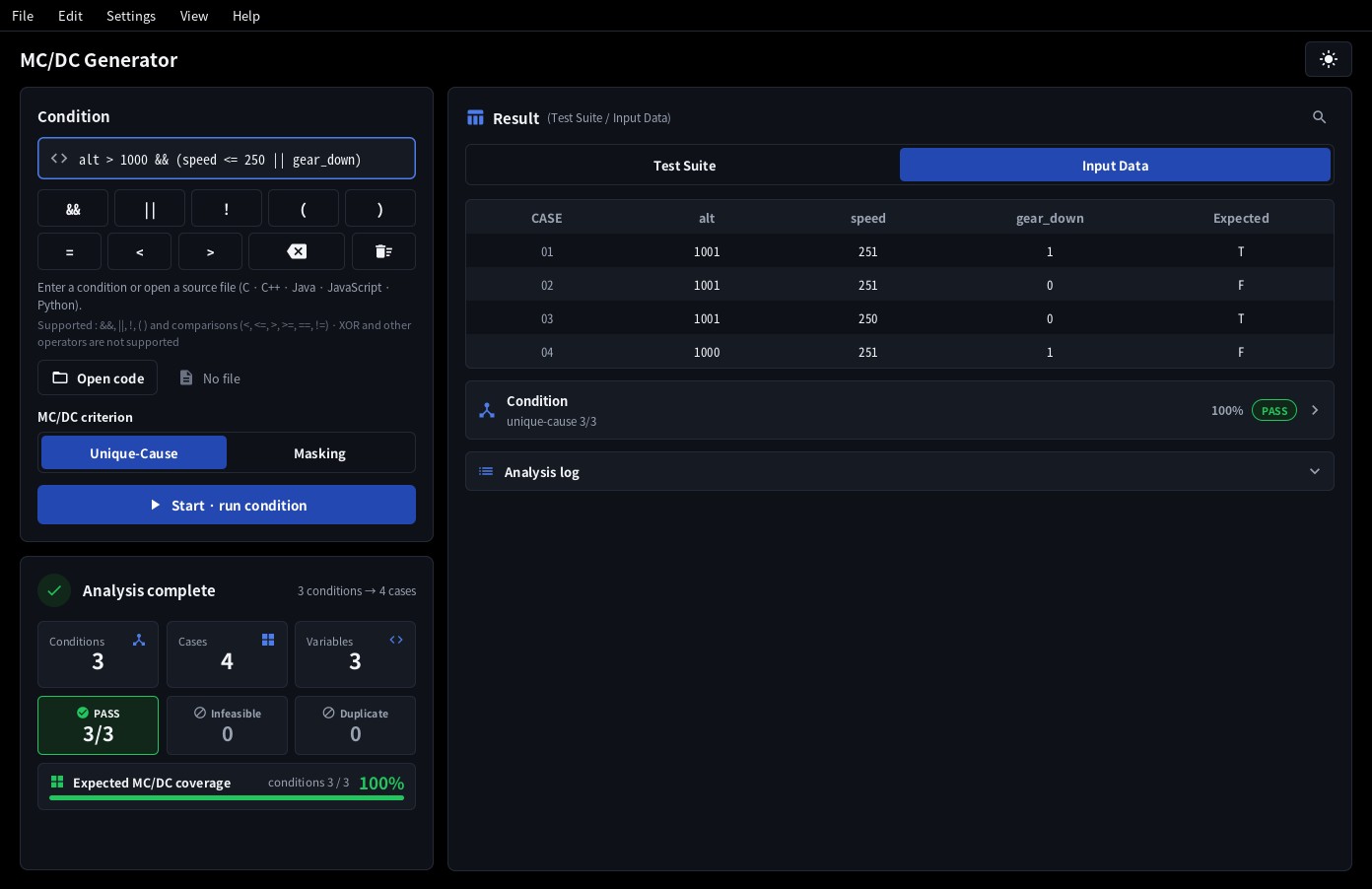
- The Analysis complete screen shows the counts and the MC/DC Check; the table on the right lists the cases.
- For a source file, open it with Open code or drop it on the window, then press Start. A file with a single decision is analysed right away; with several, double‑click the
Lineyou want in the decision list or press Analyse each / Combined (section 3).
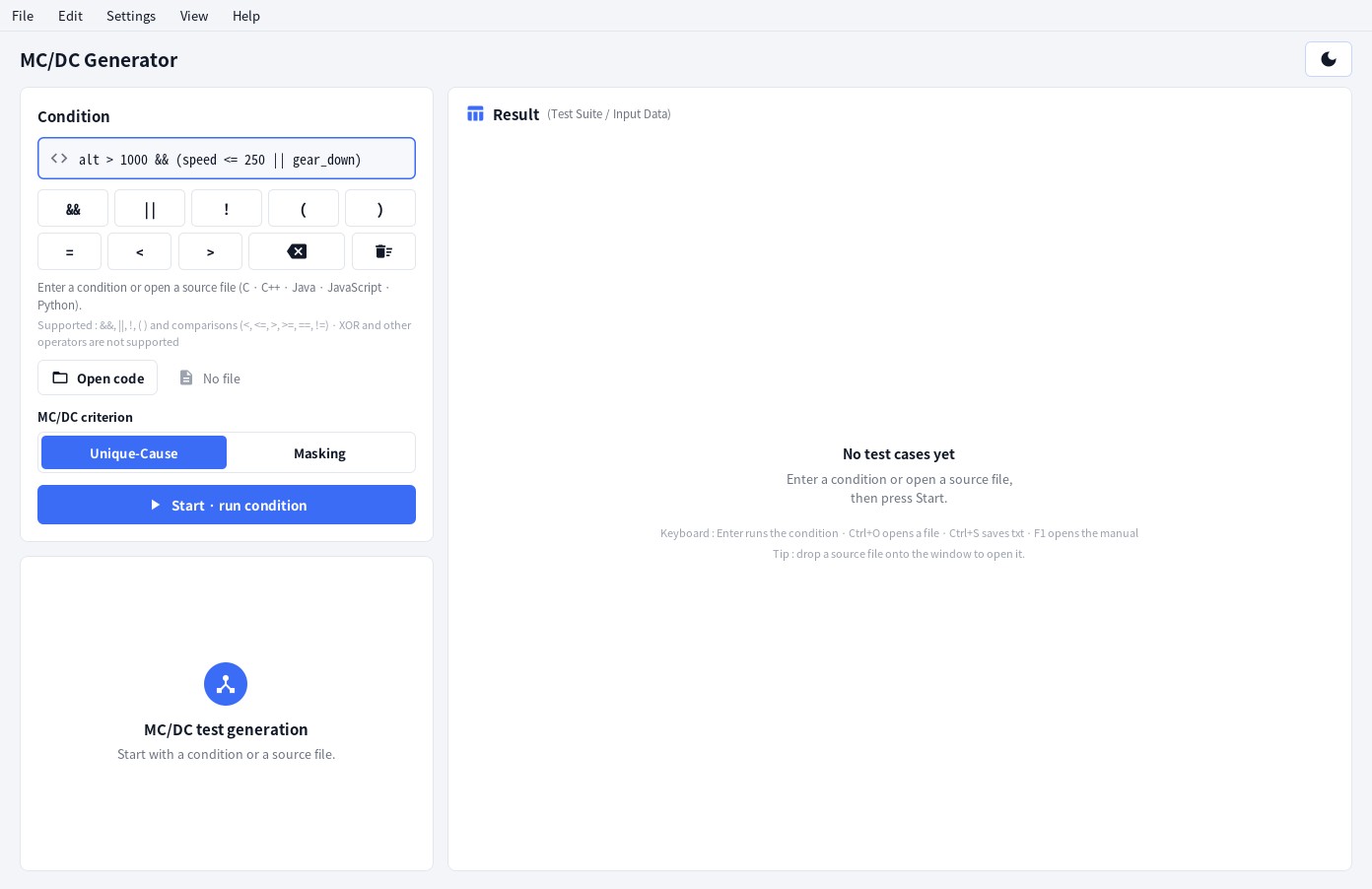
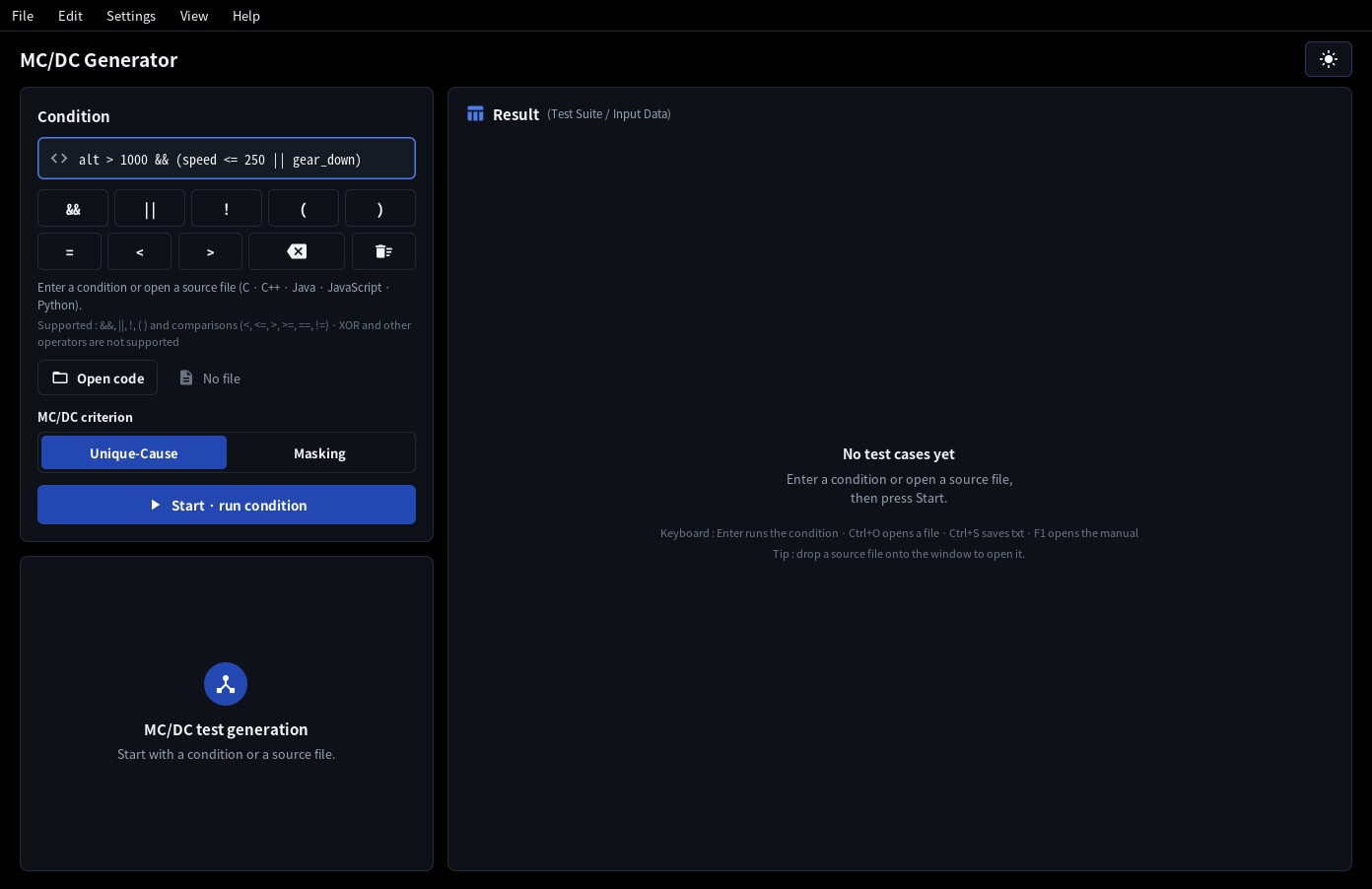
The operator buttons (&& || ! ( ) =
< >) add the operator to the condition; ⌫ deletes one character and the bin clears the whole condition
(Ctrl+L clears the input and the result).
Supported: &&, ||, !, parentheses and the comparisons
< <= > >= == !=. Not supported: XOR and other operators. Everything that is not a logical
operator - a Boolean variable, a function call, a member access, an array element, an arithmetic or bit expression -
is treated as one condition. Two conditions with the same text count as the same condition
(Duplicate).
- In the condition box, an expression that uses an assignment itself as the condition (
a = 3,a = b) is not a comparison, so the app reports it as an error. To test equality, writea == 3with==. An expression that compares an assigned value ((c = getchar()) != EOF) is handled as one condition. In a source file,if (a = 3)is analysed with a warning (section 3). - Chained comparisons (
a < b < c) are reported as an error too, because C compares the result of the first comparison (0 / 1) with the next value. For a range, join two comparisons with&&:a < b && b < c. In a source file the input value is left as?with a warning. - A constant condition (
1,0,true,3 > 2) always has the same result, so the case with the opposite result is marked infeasible with a warning. For a condition with an increment or decrement (n-- > 0,i++ < 10) the input is the value before the change, with a note. Negative constants (a > -5) are read as they are (-4 / -5).
MC/DC criterion - Unique‑Cause / Masking
The MC/DC criterion toggle above the Start button selects the generation criterion (the choice is remembered in the settings). For a source file too, choose it here before pressing Start. Results and saved files always say which criterion was used - the ※ Criterion : … line at the top of the log and the txt, and the # Criterion : … comment on the first line of the csv.
- Unique‑Cause (default) - shows a condition's independent effect with two cases in which only that condition changes (Robin's Rule, N+1 cases for N distinct conditions). If conditions are tied together so that some of those N+1 cases cannot run, the cases are chosen again - by EQ‑Robin and, failing that, by Fallback (section 4).
- Masking - also accepts a pair in which other conditions change as long as an operator masks their change. For expressions where a condition occurs more than once (
(a && b) || (a && c), a coupled condition) or where conditions on one variable conflict and Unique‑Cause would need infeasible cases, every condition is shown with executable cases only. When every condition occurs once and the N+1 cases of Robin's Rule can all run, both criteria give the same cases.
With Masking the check line reads MC/DC Check : PASS (masking n/n · unique‑cause k), coupled conditions are reported as "Note : coupled condition(s)", and the analysis log and saved files start with ※ Criterion : Masking MC/DC. Section 4 ("MC/DC criterion") has the details.
3. Source files
Choose File ▸ Open code… (Ctrl+O), click Open code, or simply drop a file onto the
window. C, C++, Java, JavaScript and Python files are recognised by their extension; comments, string
literals and preprocessor lines are ignored. When #if … #else appears inside a condition, only the first branch is read; in JavaScript written without semicolons, a line end is taken as the end of the statement. Code switched off with #if 0 is not read. A file can be dropped anywhere on the window - on the condition field or the analysis log as well.
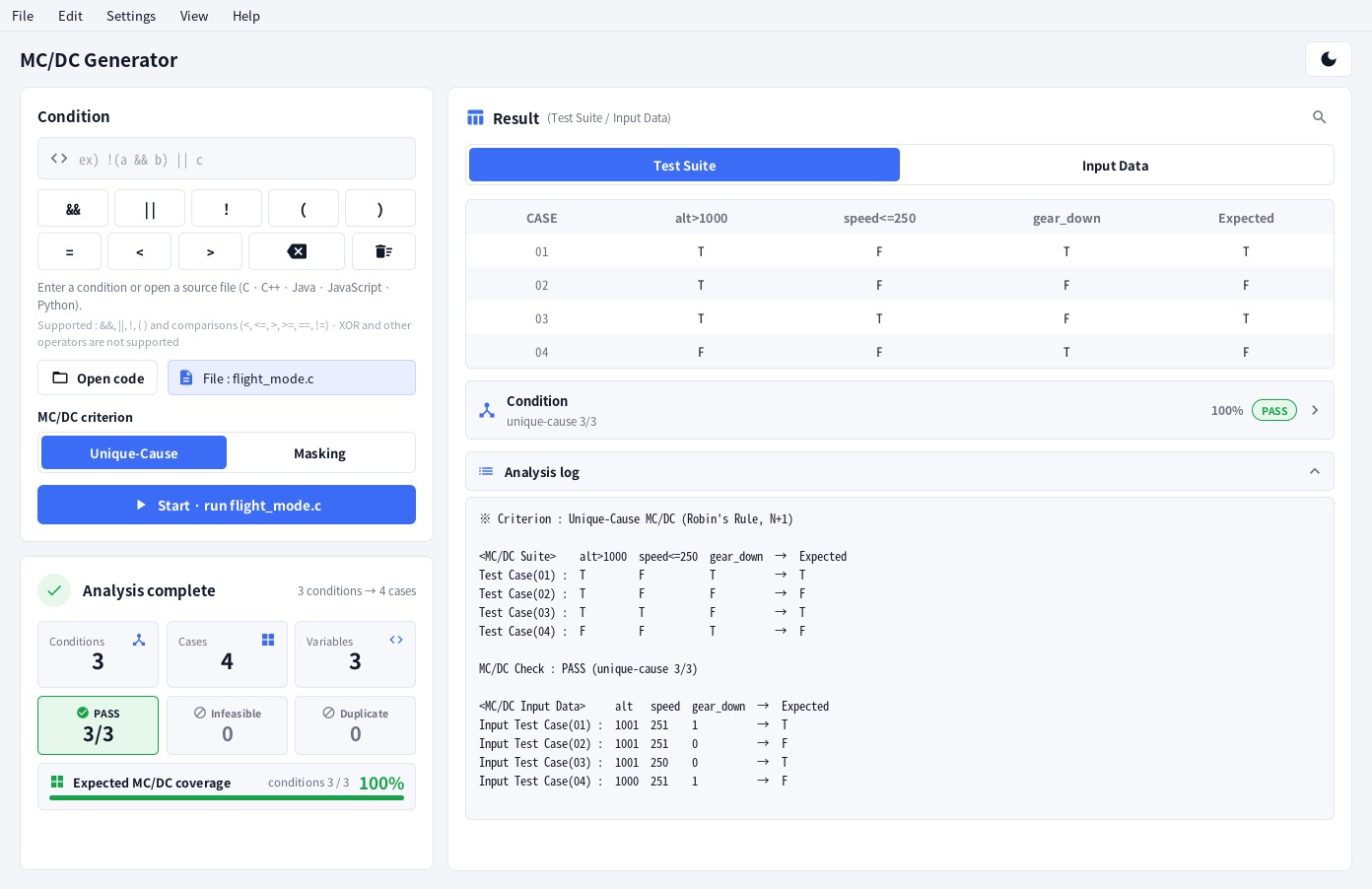
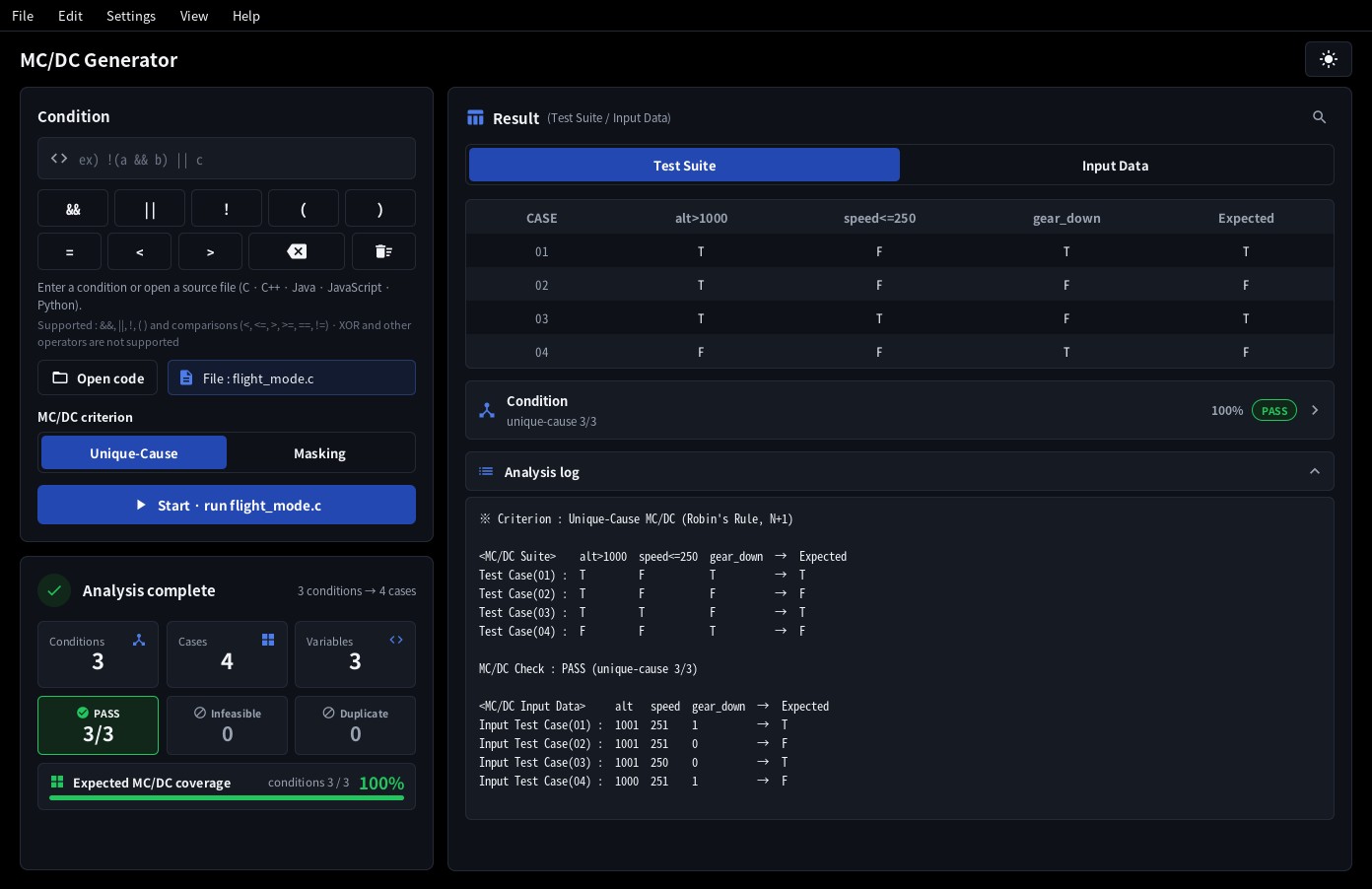
- Decisions found:
if,else if,while,for(and thewhileofdo … while). Python:if/elif/while, withand,or,not. C++ alternative tokens and JavaScript===/!==are converted automatically. - After opening a file, press Start; the selected MC/DC criterion is used. While the analysis runs, the Start button shows the progress (
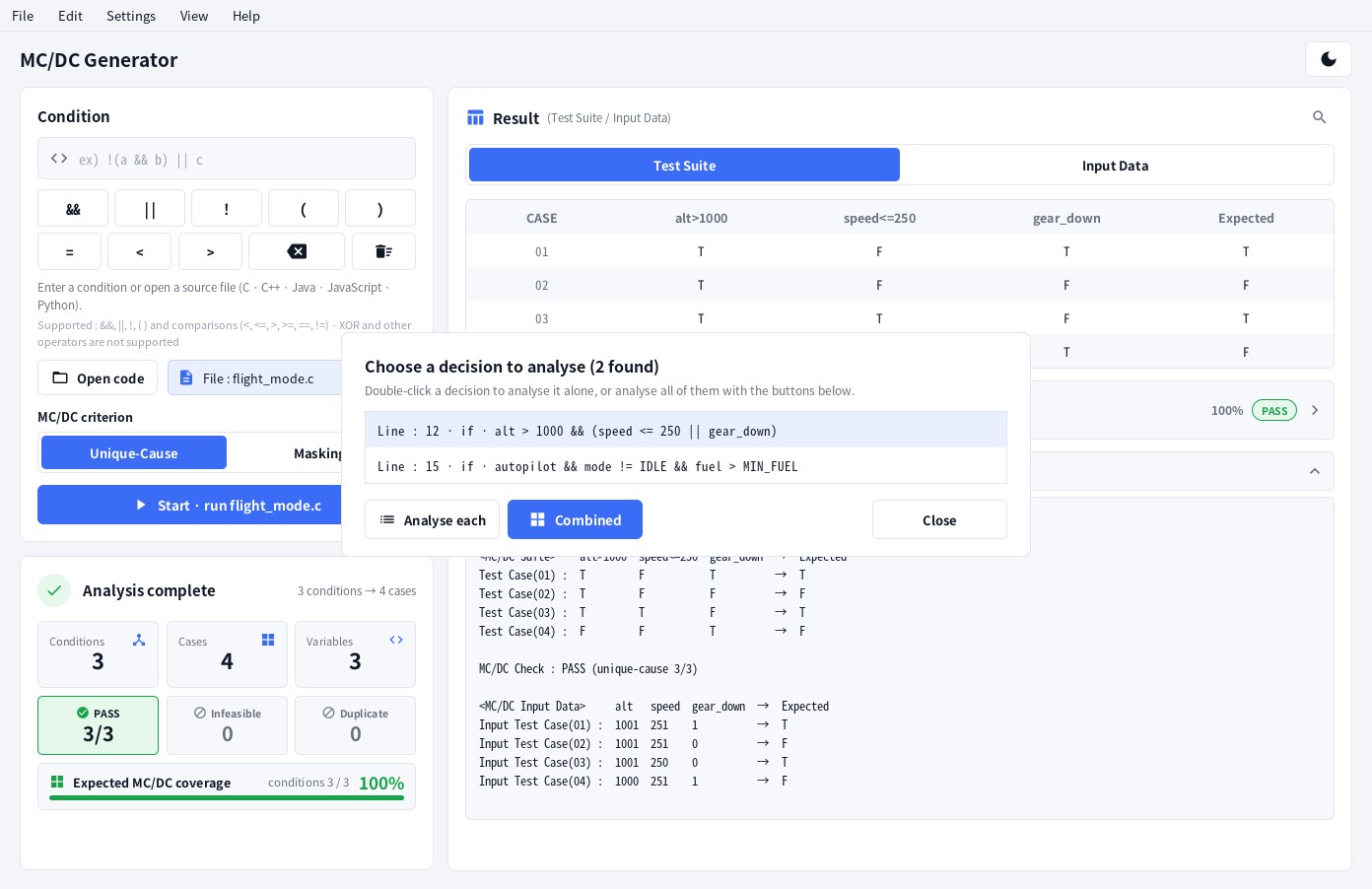
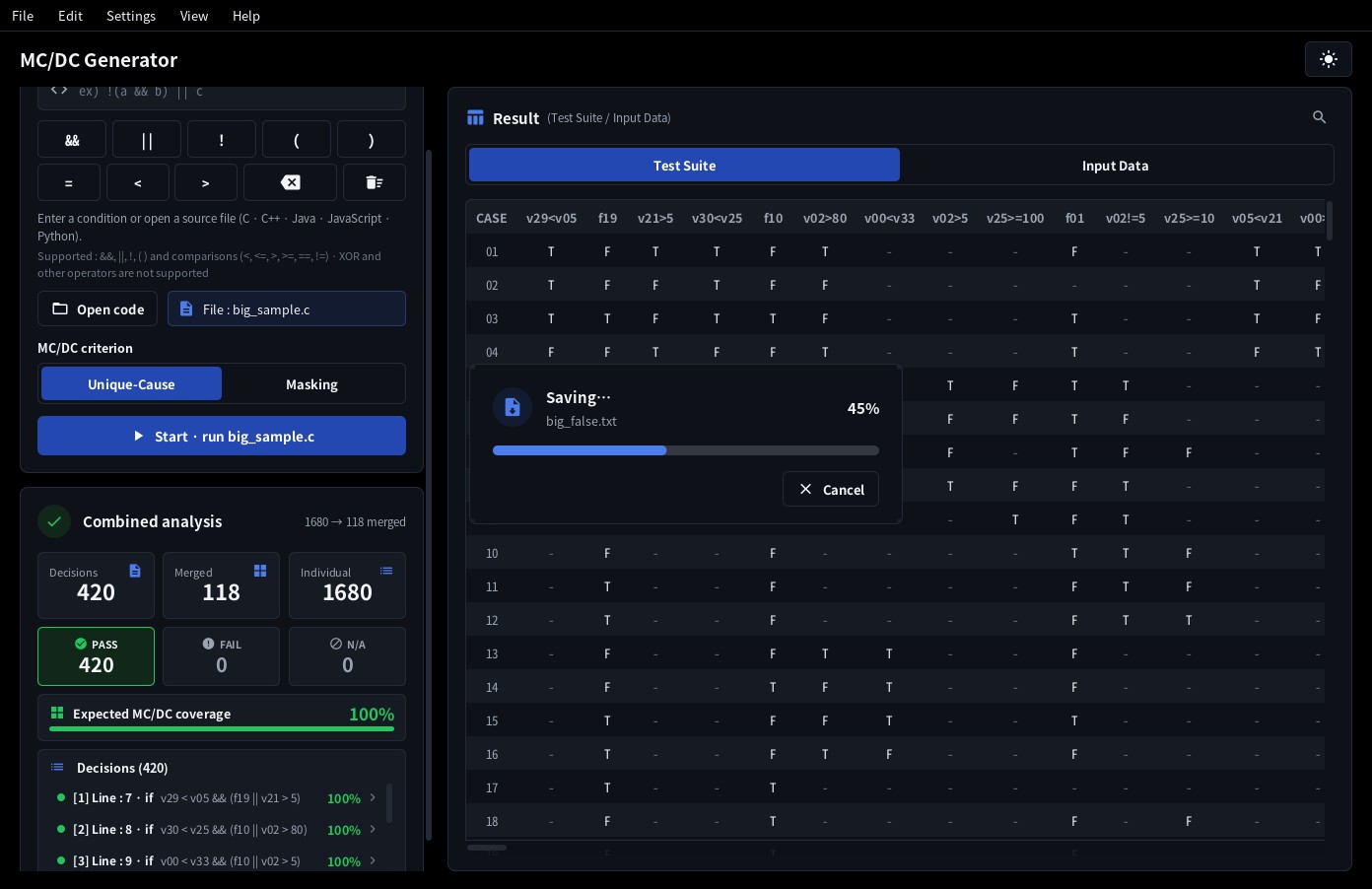
Working… 45%) and fills up to that point. A file with a single decision is analysed right away; with several, the decision list appears:
| Action | Result |
|---|---|
| Double‑click a decision (or select it and press Enter) | Only that decision is analysed. A single click just selects it. |
| Analyse each | Every decision is analysed on its own - a Test Suite table and an Input Data table are generated for each decision. |
| Combined | All decisions are analysed and merged into one table (see section 5). |
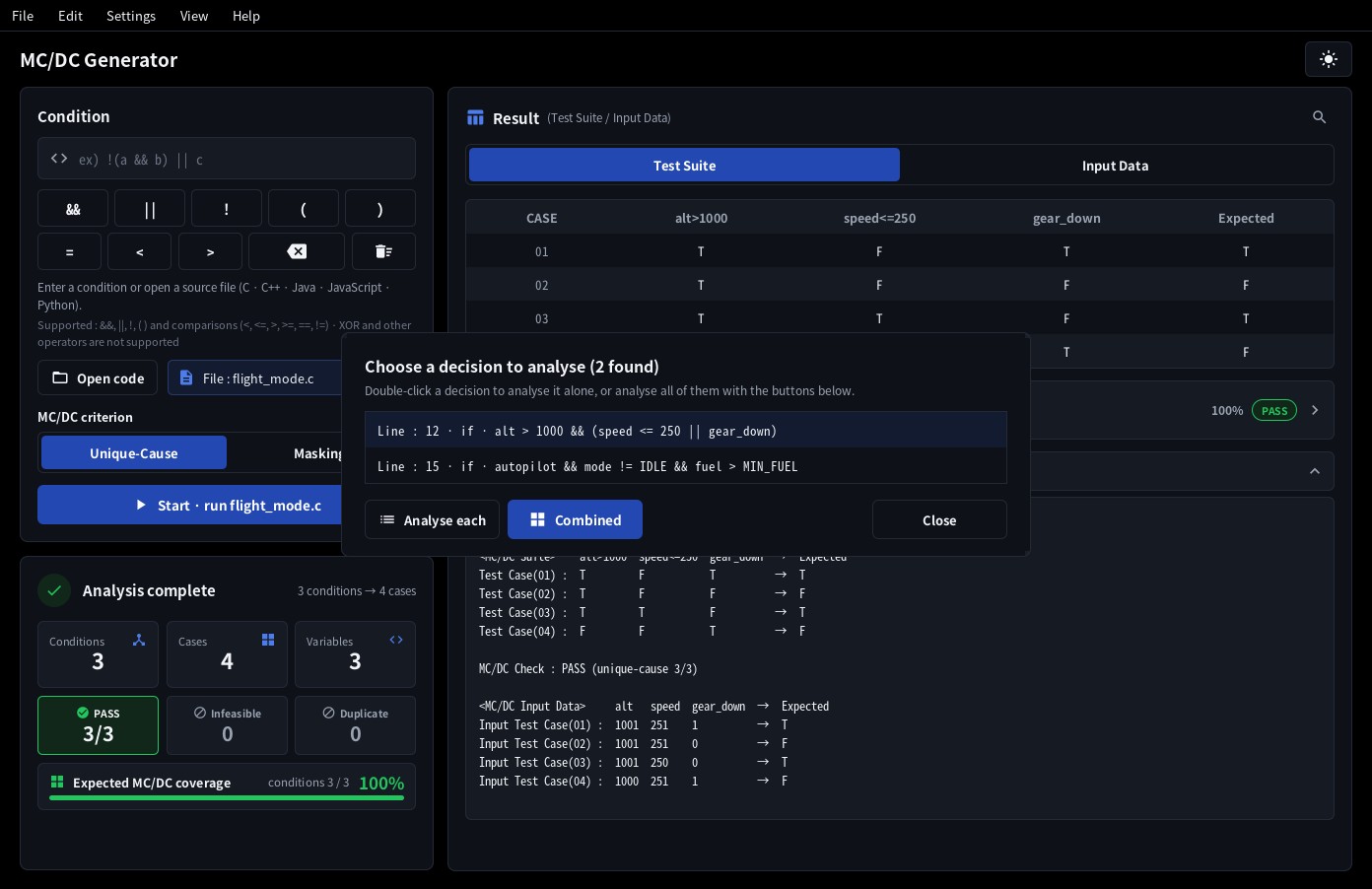
While the analysis runs, a Cancel button appears next to the Start button. It stops the analysis and leaves the previous result on screen.
After loading the code, double‑click the Line you want in the list and that decision is analysed right away. A single click only selects it; pressing Enter after selecting does the same.
Long conditions are shortened in the list; hover the mouse to see the complete text.
Assignments, constants and values fixed above
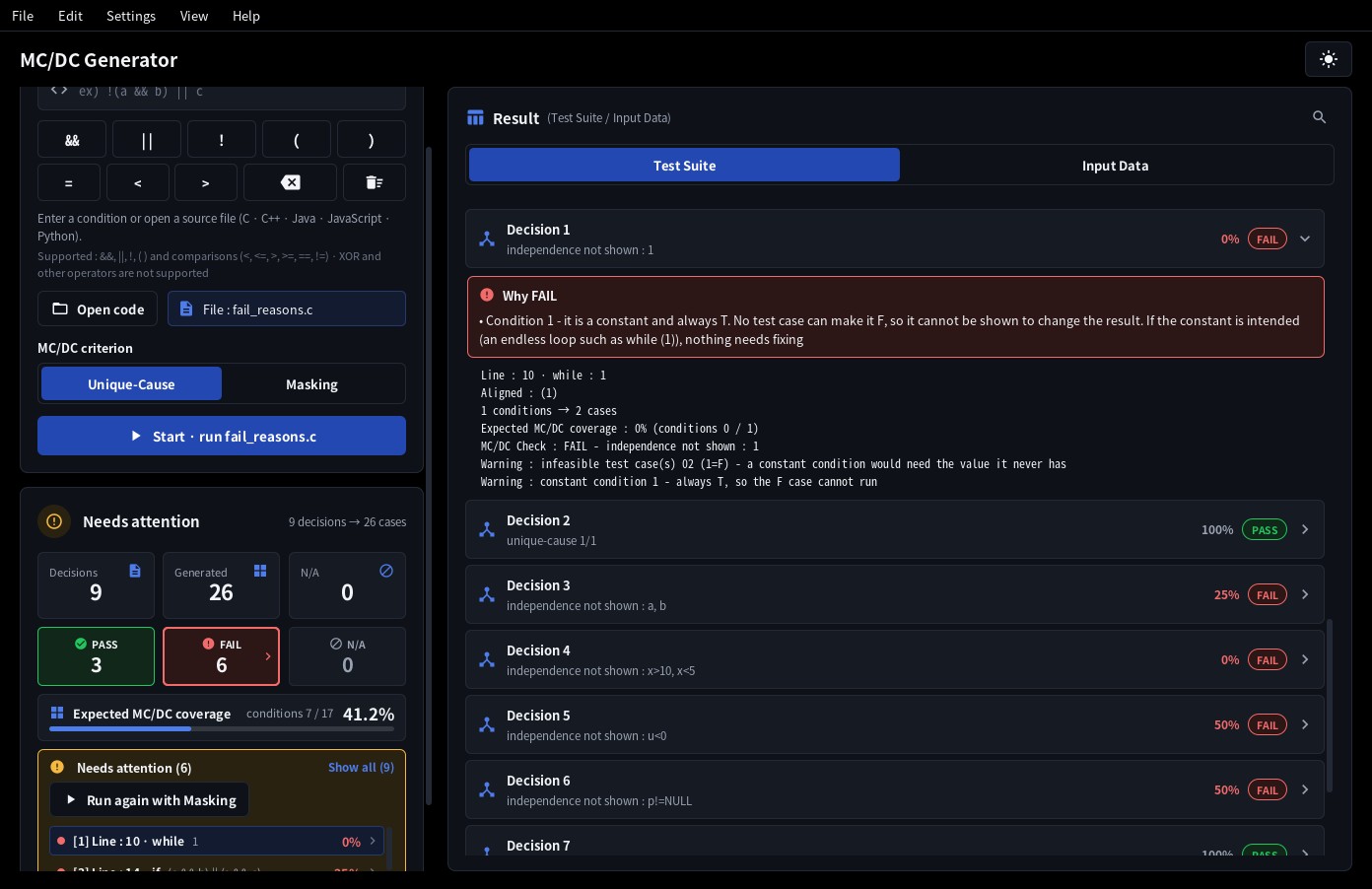
A source file is analysed exactly as written. For a condition that is not a comparison, the input values are made for what actually decides true / false, and the app tells you in the Needs attention box of the Analysis complete screen, in the decision rows and in the analysis log.
| Condition | How it is handled |
|---|---|
Constant conditionwhile (1)do { … } while (0)if (true) | The result never changes, so the case with the opposite result is marked infeasible with a warning. |
Constant assignmentif (a = 3)if (a = 0) | An assignment, not a comparison: always T (3) / F (0). The opposite case is marked infeasible with a warning. Inner decisions take a = 3 on their path, and a decision inside the branch that cannot run (else) becomes unreachable. |
Value assignmentif (a = b) | The actual condition is b (true when not 0), so the input is given for b, and inner decisions take a as having b's value (the inner cases of if (a = b) { if (a > 5) … } use a = b = 6). It may be a mistyped ==, so a warning is shown. An assignment marked as intended by its own parentheses (while ((p = p->next)), if (!(fp = fopen(…)))) and Python's := get a note only. |
Comparing an assigned value(c = getchar()) != EOF | A normal idiom. The input is given for the value of getchar(), and c in inner decisions takes the same value (note). |
Increment / decrementn-- > 0i++ < 10 | The input is the value before the change (note). |
Chained comparisona < b < c | The result of the first comparison (0 / 1) is compared with the next value, so the input is left as ? with a warning. In Python, a < b < c is converted into two conditions. |
Values fixed above : when a variable gets a constant earlier in the same function (b = 0; before if (a = b)), the app warns that the decision looks always the same or that an inner decision looks unreachable, and writes the path in the decision row and the analysis log.
※ Fixed values : Line 3 b = 0 → a=b = F → decision always F※ Fixed values : Line 3 b = 0 → Line 4 if = F → this decision unreachable
The cases (tables and input values) are made as usual; please check the result yourself. C, C++, Java, JavaScript and Python files are checked, and nothing is reported when it is not certain: variables changed inside an earlier if, loop or block, variables whose address is passed (&x), references, volatile, variables changed by inner functions or lambdas, variables outside the function after a function call, statements inside #if blocks, code with switch or goto, and in Python, decisions inside try or match and functions that use exec or eval.
Guard conditions · constants in the same file · declared types
- Guard conditions - a condition such as
p != NULLinp != NULL && p->x > 0checks that what the next condition reads exists.&&and||are evaluated from the left and stop as soon as the result is known, sop->x > 0is not evaluated in the case where p is NULL. In that case the condition and the value ofp->xare shown as-, with a note. The same holds for a condition that guards a division (d != 0 && n / d > 2) and for Java'so instanceof String s && s.isEmpty(). When the order is wrong (p->x > 0 && p != NULL) the case with p == NULL cannot run, so it is marked infeasible with a warning. The condition input box behaves the same way. - Constants in the same file -
#define MAX 10,enumandconst(Javastatic final, JavaScriptconst, Python names in capitals) are read, and a condition that compares sizes (n < MAX) gets numbers as input values (9 / 10). A condition that only tests equality with a name (mode == IDLE) keeps the name, and an enum picks another name of the same enum (m != RUN→IDLE). The values of the constants that occur in the conditions are listed in a note. A name that is defined twice, or defined in another file, stays symbolic (MAX-1). - Declared types - in C, C++ and Java files the declaration of a variable is read and values are chosen inside its type: no -1 for an
unsignedvariable, no 256 for auint8_t, no 3.5 for an integer. A condition that cannot be true or false in that type (u < 0for anunsignedu) has that case marked infeasible. A variable whose type is not known is handled as before.
4. Reading the result
Analysis complete screen
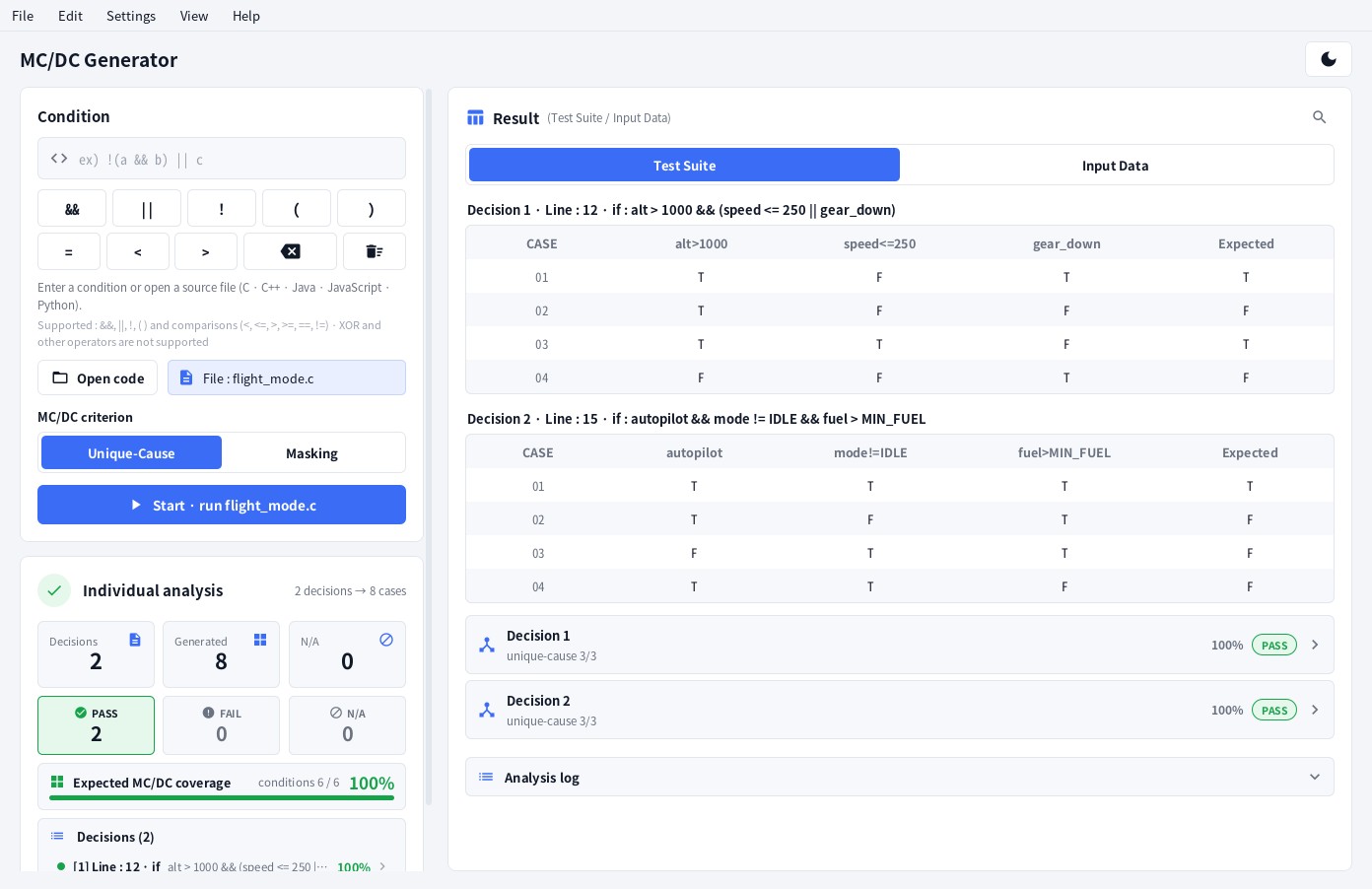
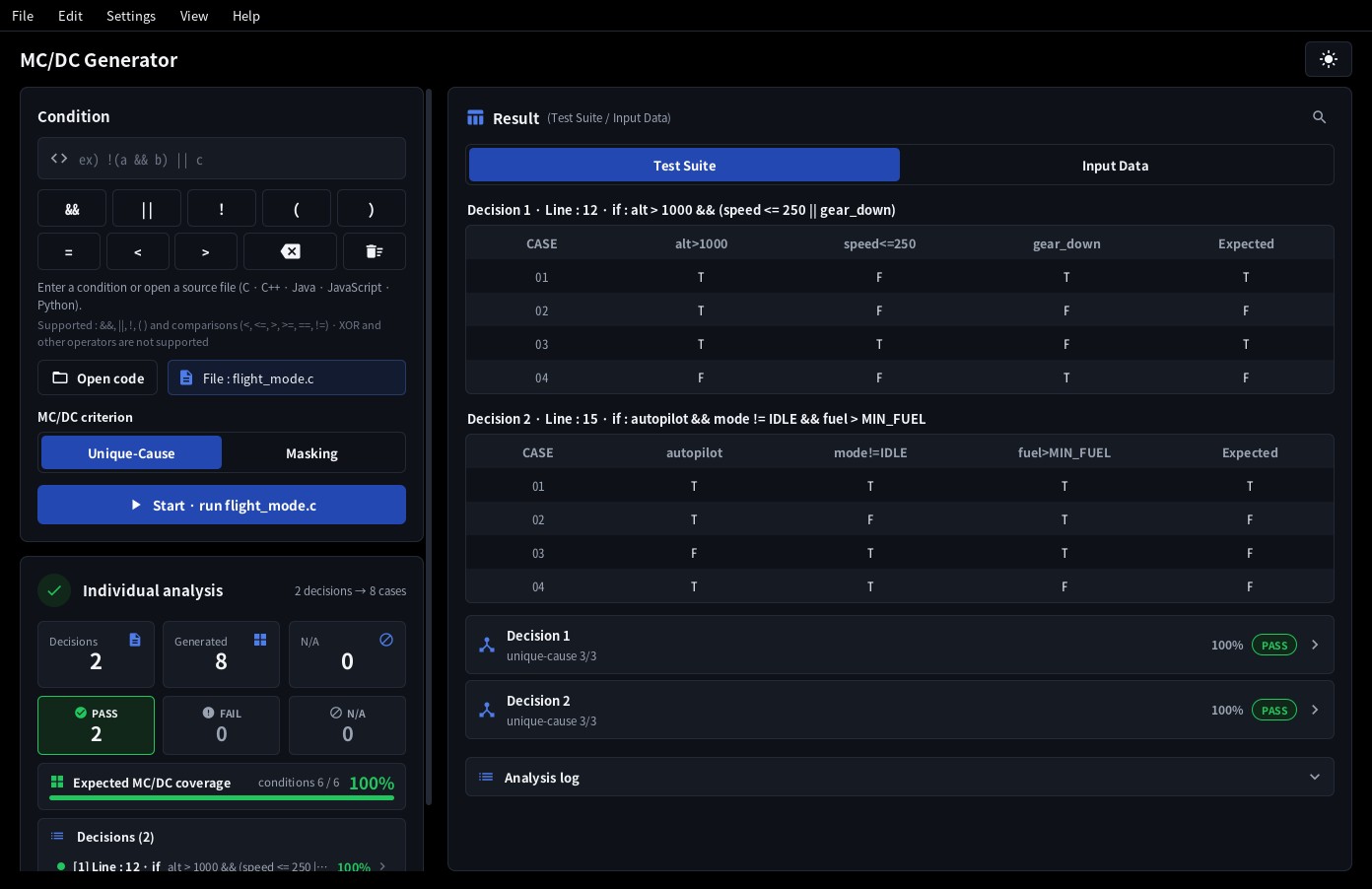
- Conditions / Cases / Variables - for a single decision; Decisions / Generated - for "Analyse each"; Merged / Individual - for a combined analysis.
- PASS - the independence of every condition was proven (unique‑cause; when a condition could only
be shown with masking, the decision row reads
masking · unique‑cause k/N); FAIL - independence could not be shown for the listed conditions; N/A - verification not available. - Infeasible - some cases cannot be reached because conditions on the same variable contradict
each other (for example
x > 10 && x < 5). The warning line names the cause - conflicting conditions on one variable, a constant condition, the declared type, or a guard condition in the wrong order. With the Unique‑Cause criterion such cases are replaced by choosing the cases again (EQ‑Robin · Fallback, see Result table below), so they remain only where that is not possible. Duplicate - a condition occurs more than once, so N+1 unique‑cause cases are not guaranteed. Details are listed under Needs attention. When there are only notes and no warning, they appear in a Note box instead. - Expected MC/DC coverage - the share of conditions whose independent effect is shown when the generated test cases are run as they are (conditions shown / conditions; test cases that cannot run are not counted). The Analysis complete screen shows the overall value, and the list below it and the decision rows of the result show the value of each decision (
100%·75%). It is never written as100%while a condition is still missing (99.9%). Decisions that could not be analysed are not counted. - Decision list - after Analyse each or Combined, a Needs attention list appears below the expected coverage: one line for each decision that is FAIL, has a warning or could not be analysed, with its line number, condition and expected coverage. Click a line to go to that decision in the result and open its details. Show all lists every decision. Clicking the FAIL or N/A tile also goes to such a decision, and clicking again goes to the next one.
Result table
- Test Suite - one column per condition with
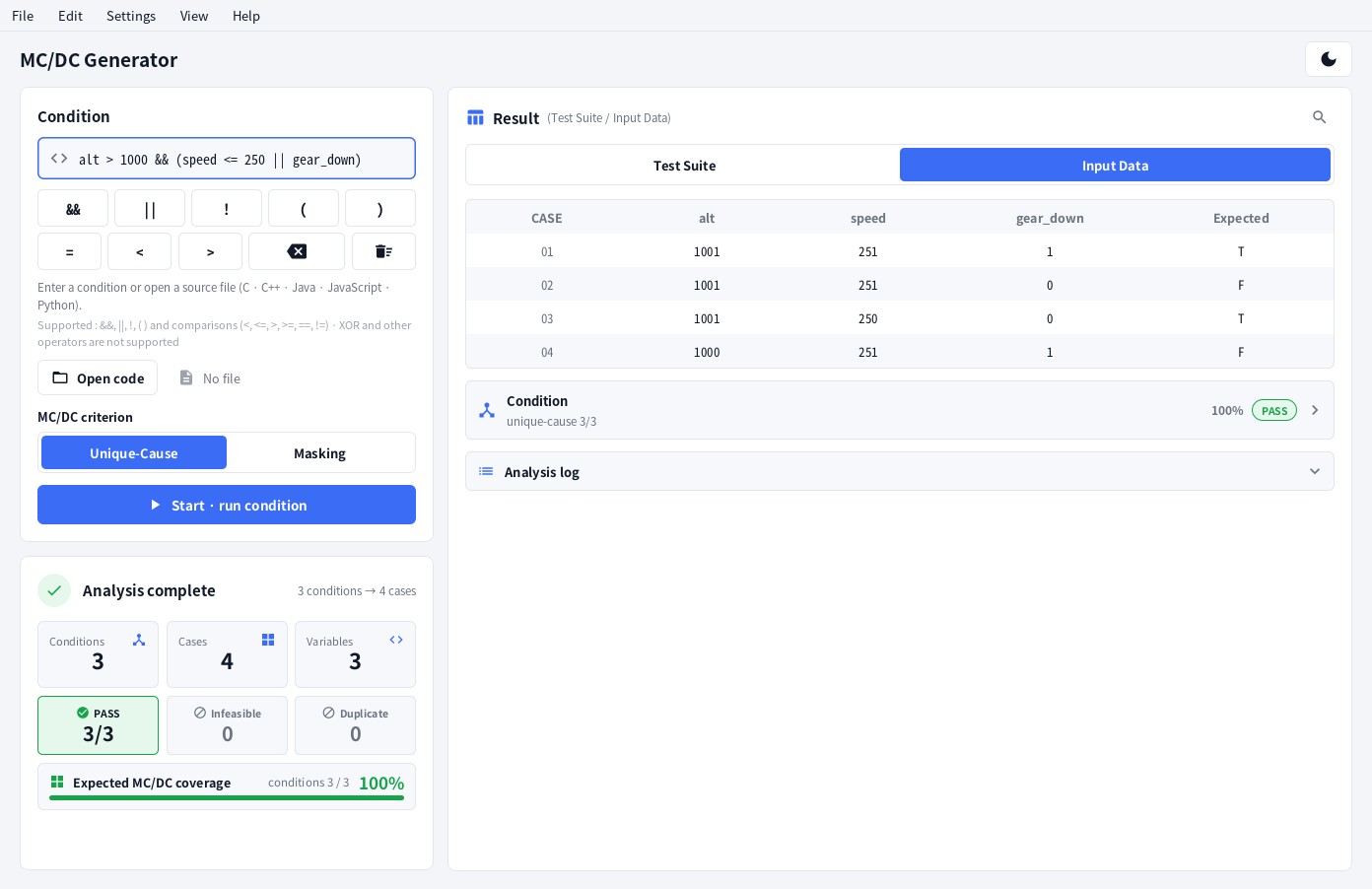
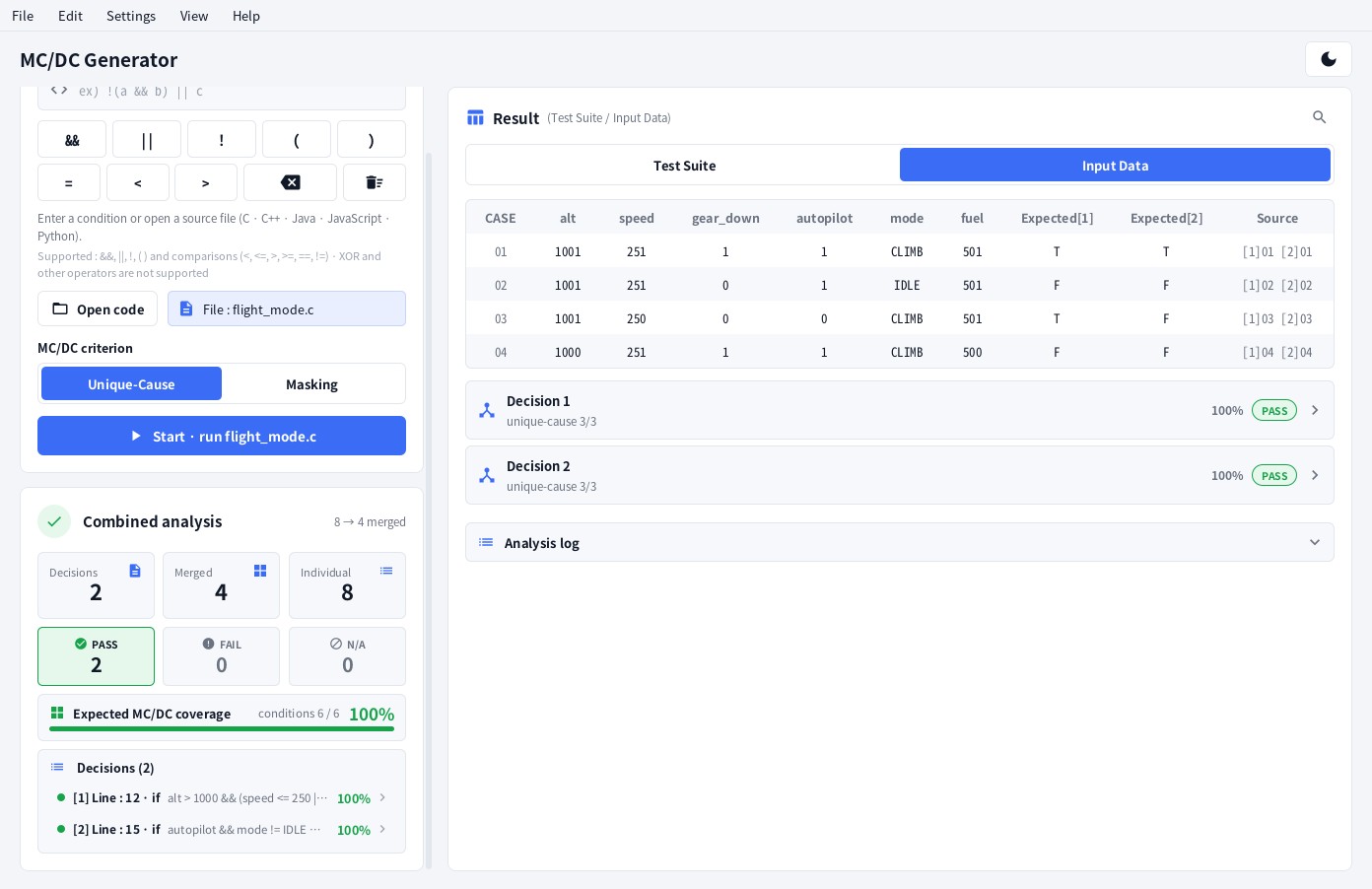
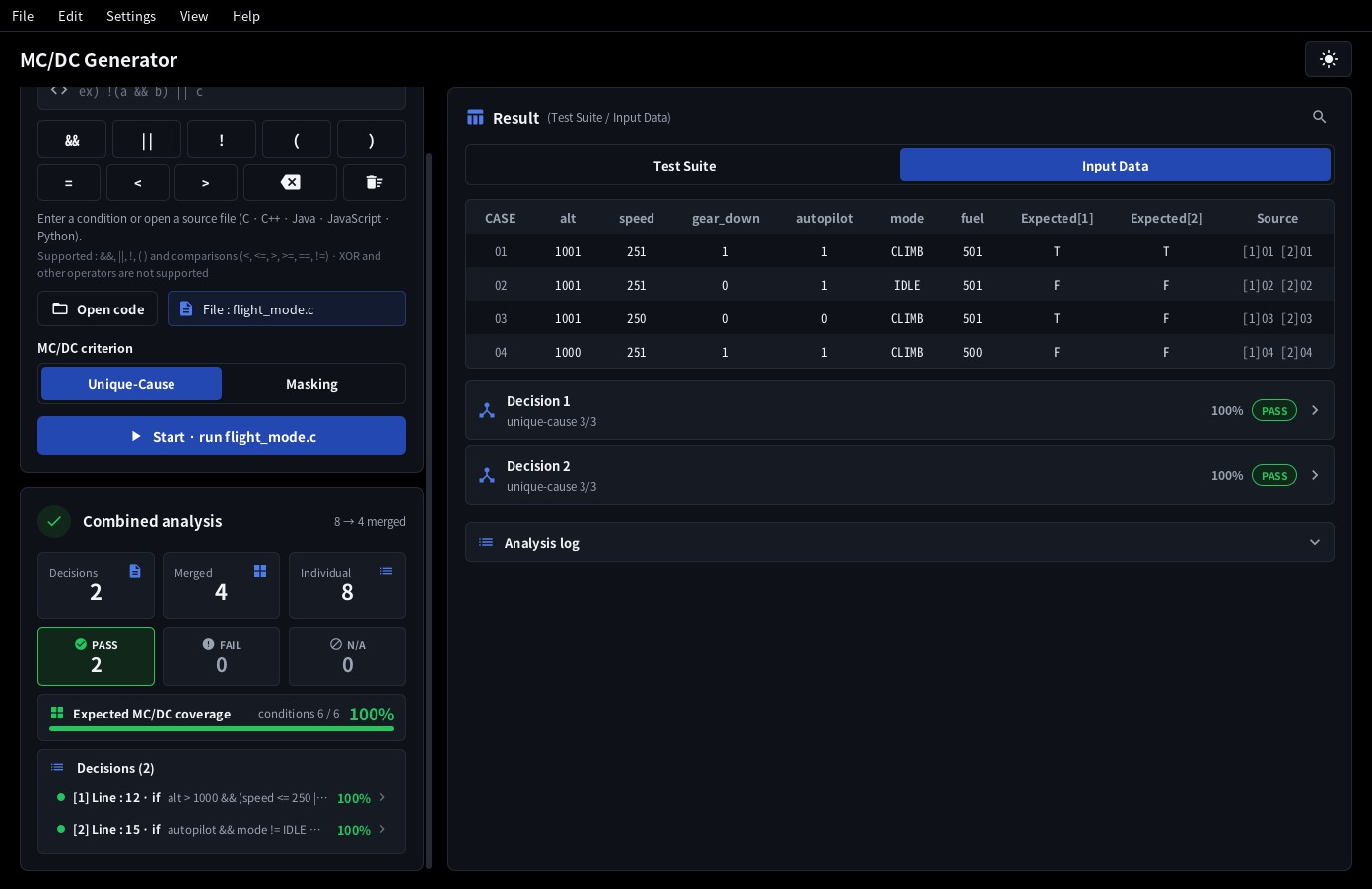
T/F, plus Expected, the outcome of the decision for that case. - Input Data - one column per variable with an example value that produces the required truth values
(for comparisons).
?means no value could be derived - an unsupported comparison, a chained comparison (a < b < c) or a constant that cannot be read; a warning is shown with it. A comparison between two numbers (3 > 2) is handled as a constant condition (section 3). - Cases are numbered
01 … N+1. An infeasible case is shown in red with※; a-means the case does not use that variable (any value). - Nested decisions - when a decision sits inside another one (an
ifinside anif, anelse if, a loop body), its input data also satisfies the enclosing decisions. The decision row shows that path (Path : Line 3 if = T · Line 5 if = F), and variables that only the path needs appear in faint columns marked†. The path values are taken from one of the enclosing decision's own test cases (one that yields the required outcome), so in a combined analysis the inner case merges into that outer case row. A case that cannot be reached together with the path is marked unreachable - it cannot be executed in this program, so the MC/DC Check reports it. A path condition whose value can change between the enclosing decision and this one (a variable that is assigned again or passed to a function, a call that may return a different value each time) is not tied to the input values - such a case is not marked unreachable, and it is reported as "Note : path condition(s) …". - MC/DC criterion - pick Unique‑Cause or Masking with the toggle on the input card. Unique‑Cause shows a condition's independent effect with two cases in which only that condition changes (Robin's Rule, N+1 cases for N distinct conditions). Masking also accepts a pair in which other conditions change as long as an operator masks their change, so for expressions where a condition occurs more than once (
(a && b) || (a && c)) or where conditions on one variable conflict and Unique‑Cause would need infeasible cases, every condition is shown with executable cases only. When every condition occurs once and the N+1 cases of Robin's Rule can all run, both criteria give the same cases. The check line readsMC/DC Check : PASS (masking n/n · unique‑cause k), and a condition that can never change the outcome (b ina && (a || b)) is shown as FAIL. The columns of the tables, the analysis log and the saved files follow the order of the condition you typed; the aligned expression appears only on the "Aligned :" line. - EQ‑Robin · Fallback - with the Unique‑Cause criterion, when conditions are tied together (in
h > 16 || h == 16 && d > 7the two conditions onhcannot both be true) some of the N+1 cases may be impossible to run. The same expression usually has more than one set of N+1 cases, so the cases are chosen again. EQ‑Robin rewrites the expression in equivalent arrangements - changing the order of the operands and the way they are grouped (a && b && c↔a && (b && c)) - applies Robin's Rule unchanged to each, and uses the first arrangement whose N+1 cases can all run. The arrangement used is shown on the "Aligned :" line; the columns keep the order of the condition you typed. If no arrangement works, Fallback rebuilds the set from cases that can run - N+1 when that is possible, otherwise with only as many extra cases as are needed (N+2 or more). Such a result carries a line "Note : EQ‑Robin - …" or "Note : Fallback - …", and the decision row shows· EQ-Robinor· Fallback (N+2). When a condition has no two cases that differ only in that condition, give different results and can both run (a > 5ina > 10 && a > 5), Unique‑Cause MC/DC cannot be met: the infeasible case stays, and a line "Note : condition(s) …" names the condition. Expressions in which a condition occurs more than once are not chosen again (use the Masking criterion). - Long tables - while you scroll down a table its header row stays at the top of the result area, and the horizontal scrollbar is shown at the bottom of the area even when the end of the table is off screen (the analysis log too). A condition that is not evaluated also shows
-(guard conditions, section 3).
Decision rows and analysis log
Below the table each decision has a row with its source line, the normalised expression and the check result
(unique‑cause k/N, masking, …). Analysis log opens the full text report - the same text that
Save txt writes. Edit ▸ Copy analysis log (Ctrl+Shift+C) copies it to the
clipboard.
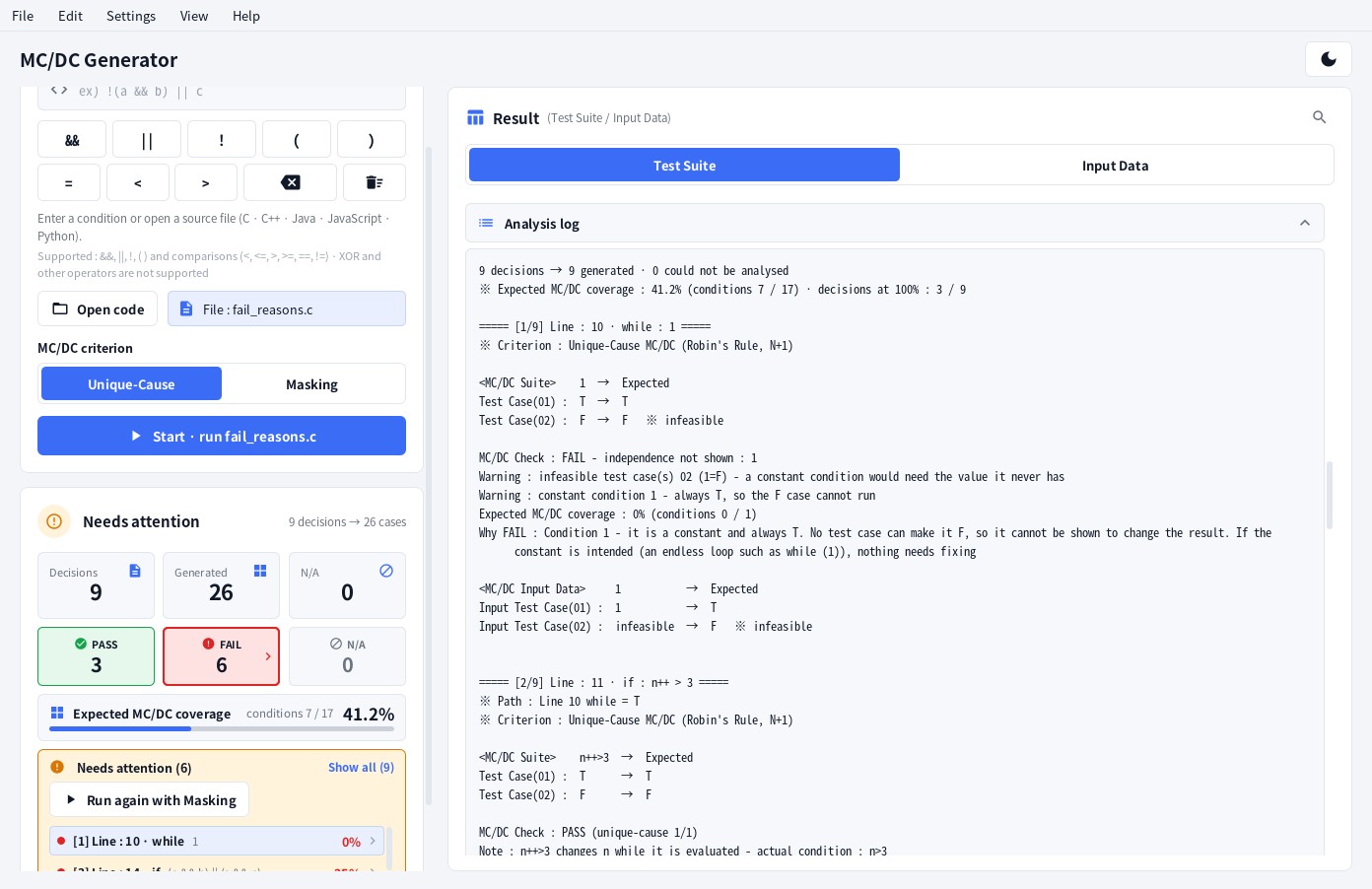
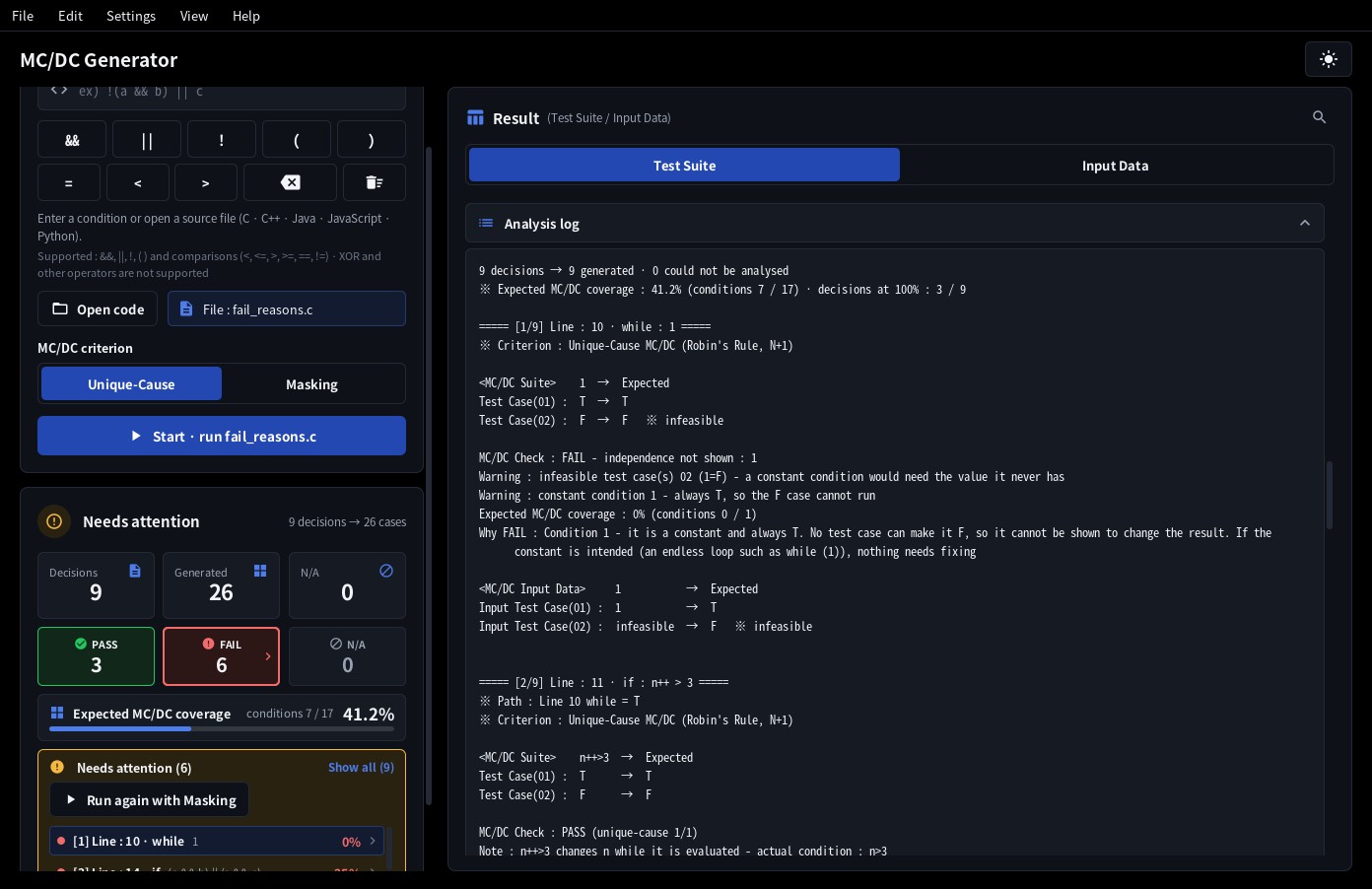
Edit ▸ Find in analysis log (Ctrl+F) or the magnifier in the title row of the result card opens the find bar. Enter goes to the next match, Shift+Enter to the previous one and Esc closes it. Long warning and note lines in the analysis log are folded to the width of the window. When a condition occurs twice and Unique‑Cause cannot be shown, the Needs attention box offers a Run again with Masking button.
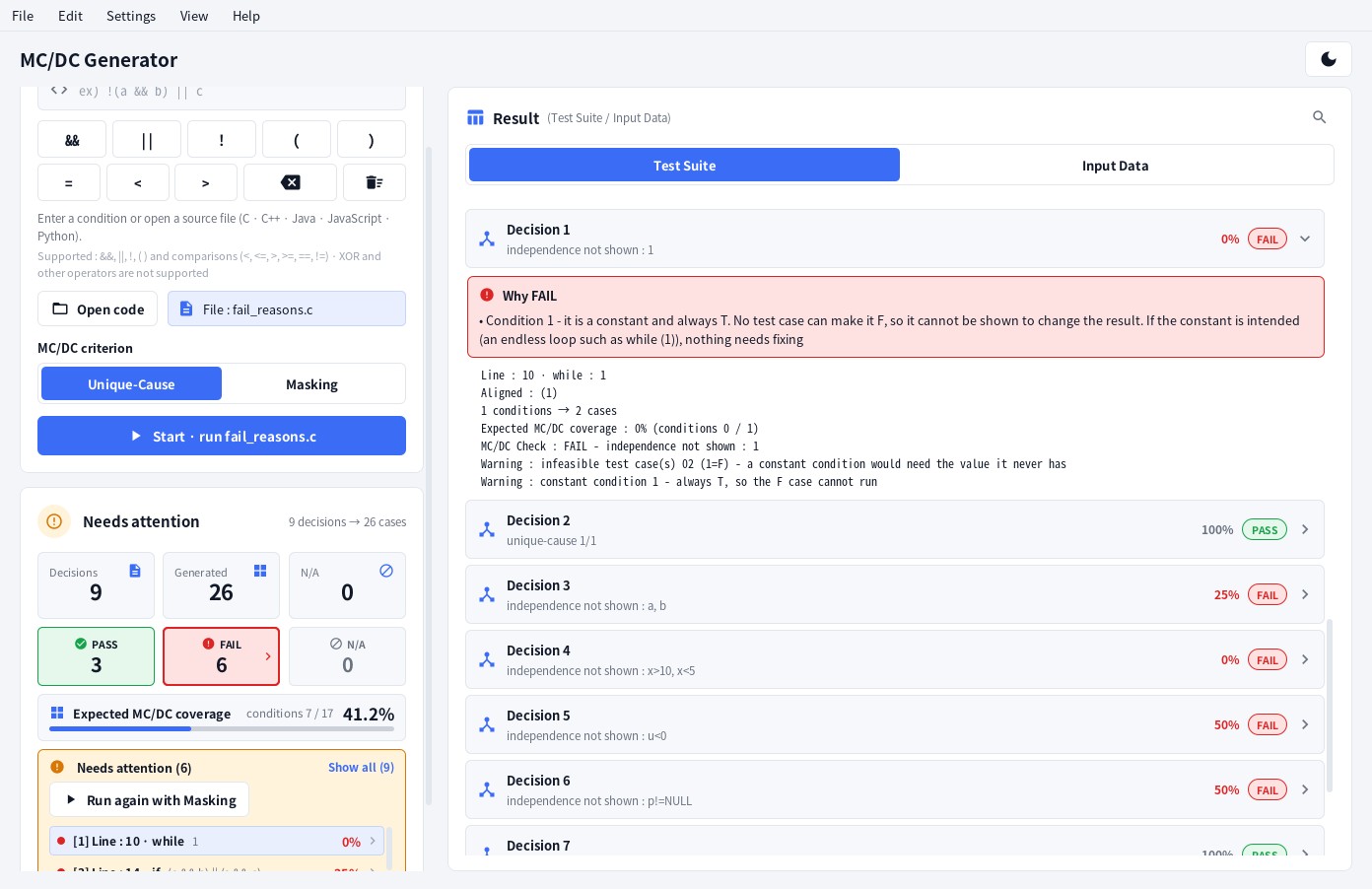
For a decision that is FAIL, a Why FAIL box at the top of its details explains, for each condition whose independent effect is not shown, why: a constant condition (while (1)), a condition used more than once (Unique‑Cause), a test case of the pair that cannot run - conditions on the same variable conflict (x > 10 && x < 5), the declared type does not allow it (u < 0 for an unsigned u), a guard condition is in the wrong order, or the enclosing decisions cannot be met at the same time - or a condition that cannot change the result of the expression (b in a || (a && b)). The analysis log and the txt file carry the same text in Why FAIL : … lines.
5. Combined analysis
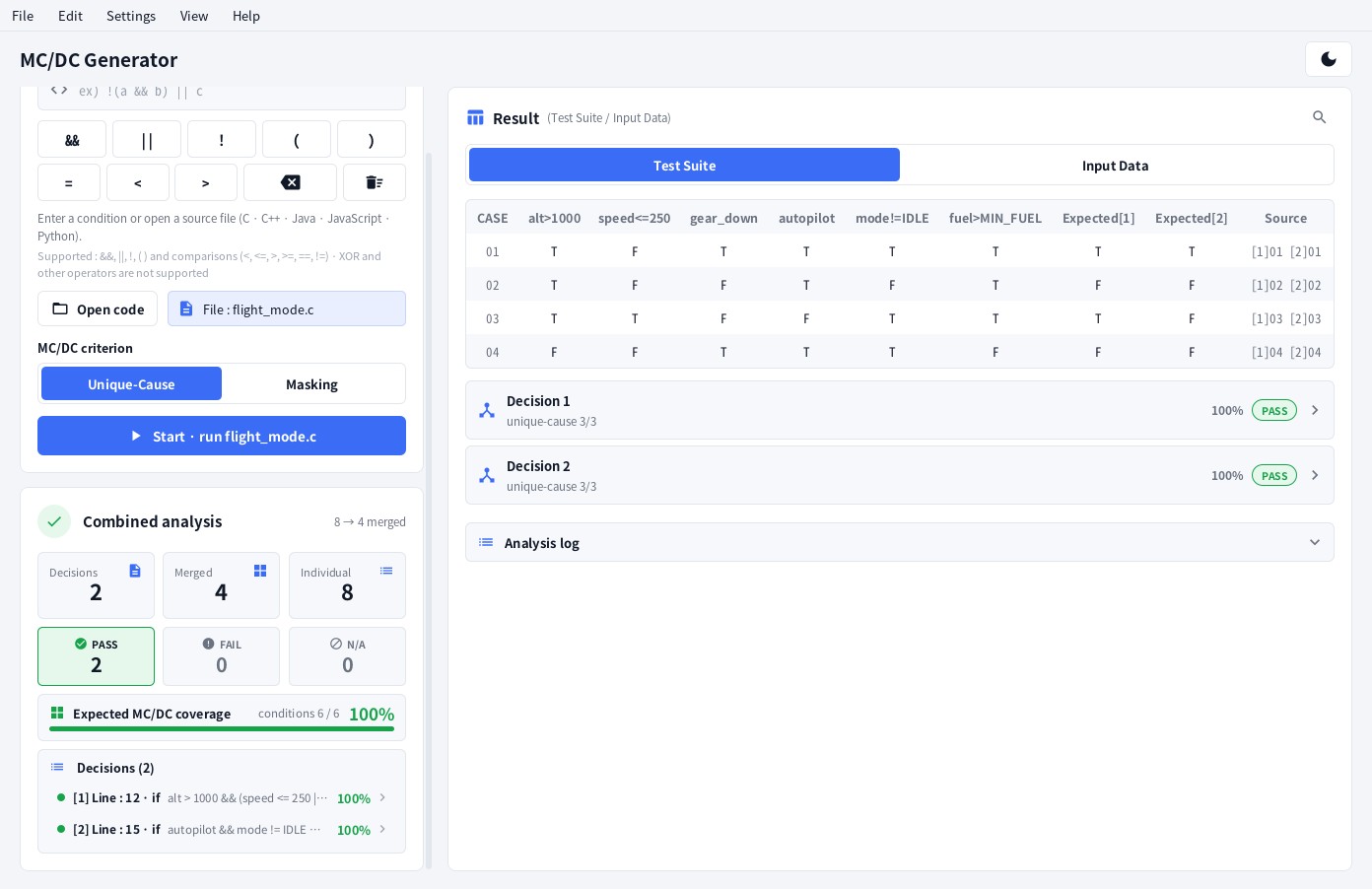
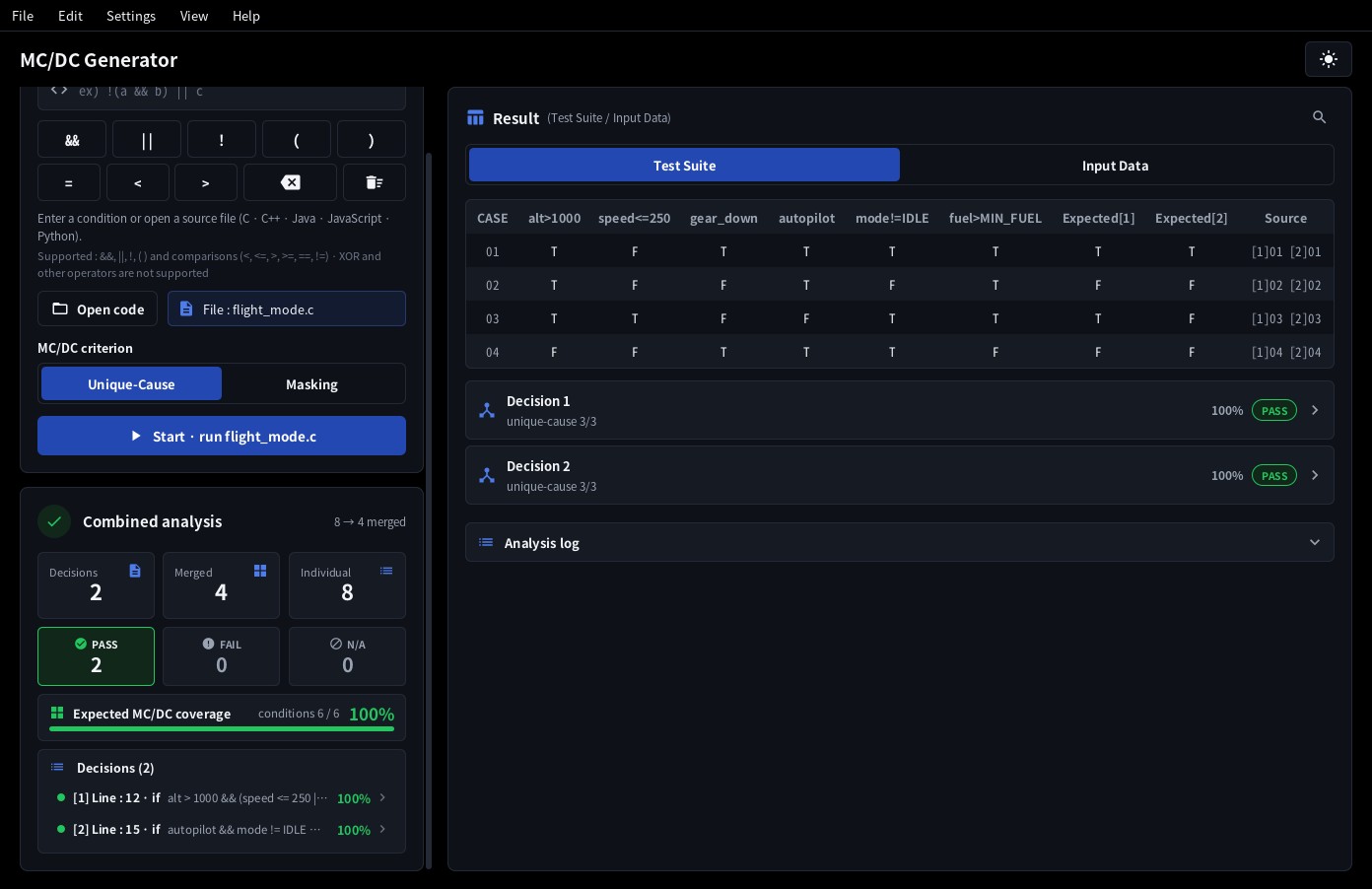
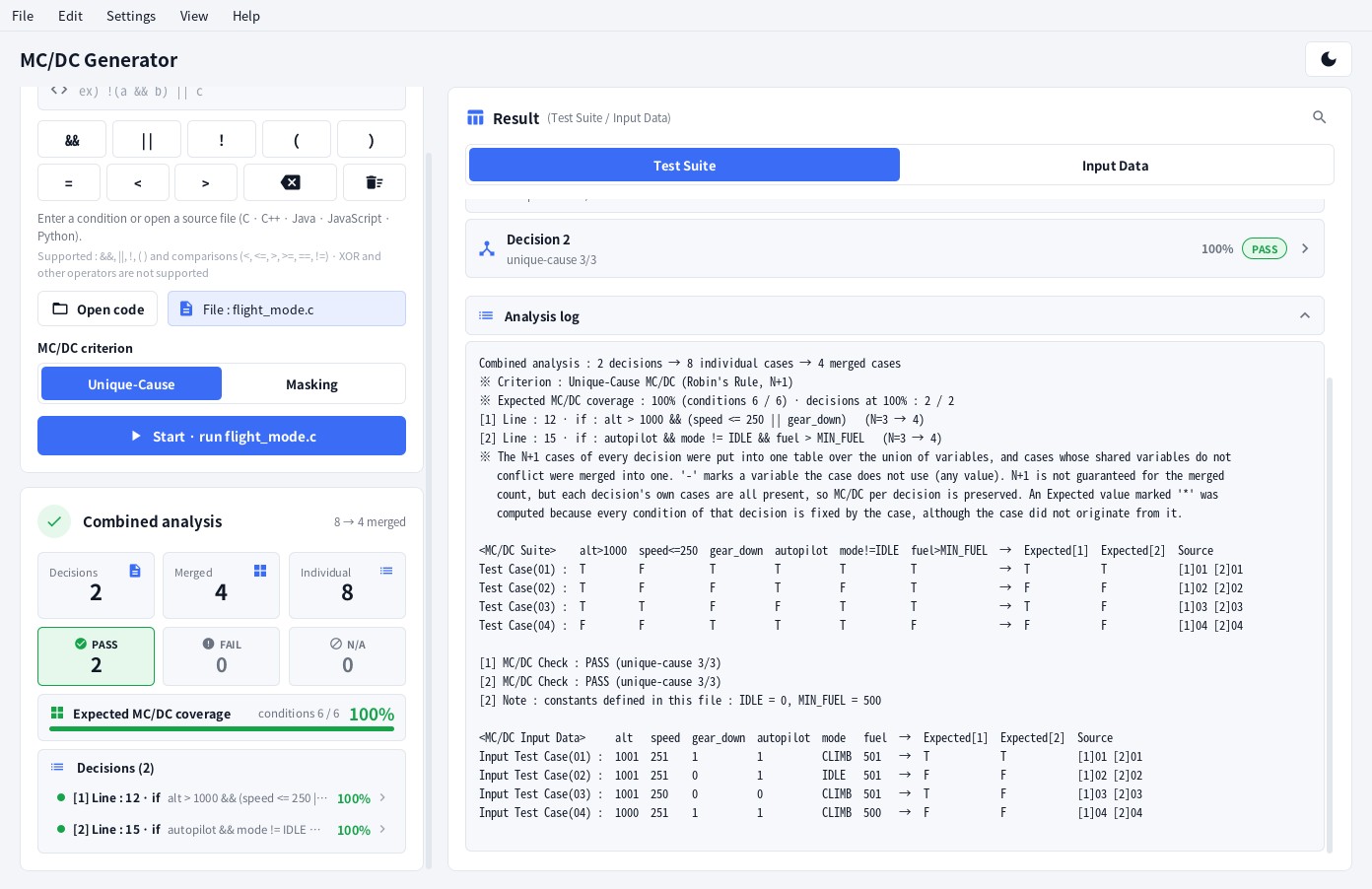
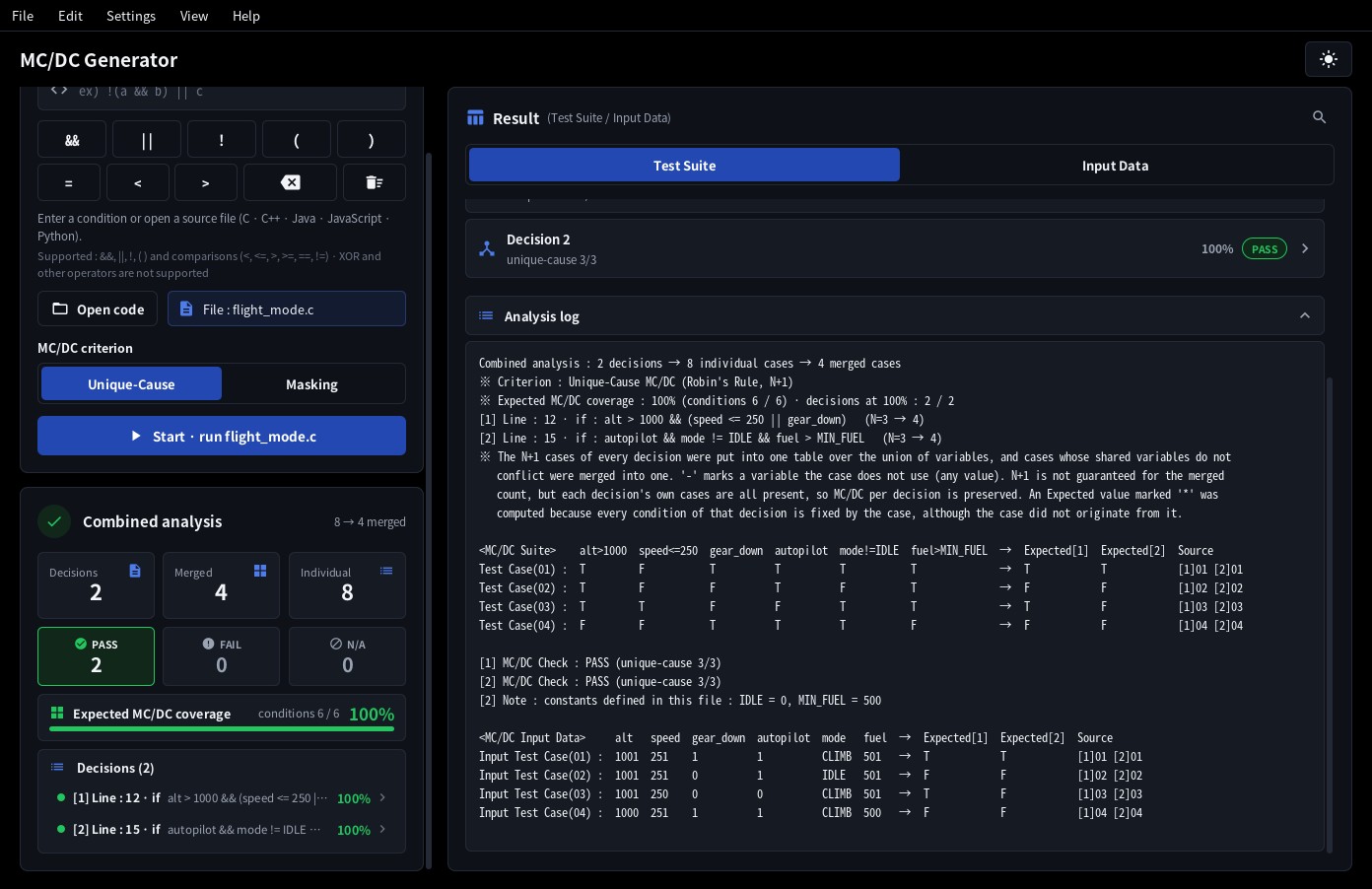
The N+1 cases of every decision are placed in one table over the union of all variables, and cases whose shared
variables do not conflict are merged into one. The Source column tells which decisions a merged case came from.
Expected[n] is the outcome of decision n; a value marked * was computed because the row's values determine that decision's outcome although the case did not originate from it (an enclosing decision is determined by the path values alone). The merged count is not guaranteed to be N+1, but
all cases of every decision are still present, so MC/DC per decision is preserved. Cases from mutually exclusive branches (an if and its else) are never merged, and a decision that is not executed by a row shows - for Expected. A - in the table is a condition or variable the row does not use (any value is fine). In saved files these cells can be filled automatically via Settings ▸ Blank cells (-) when saving (section 6).
6. Saving
| Menu | Content |
|---|---|
| File ▸ Save txt… (Ctrl+S) | The text report (analysis log). Open it with a monospaced font - Consolas, D2Coding, Courier New - so that the table columns line up. |
| File ▸ Save csv… (Ctrl+Shift+S) | Input data as CSV: TC, one column per variable,
Expected and Note (infeasible). UTF‑8 with BOM, so Excel opens it correctly. |
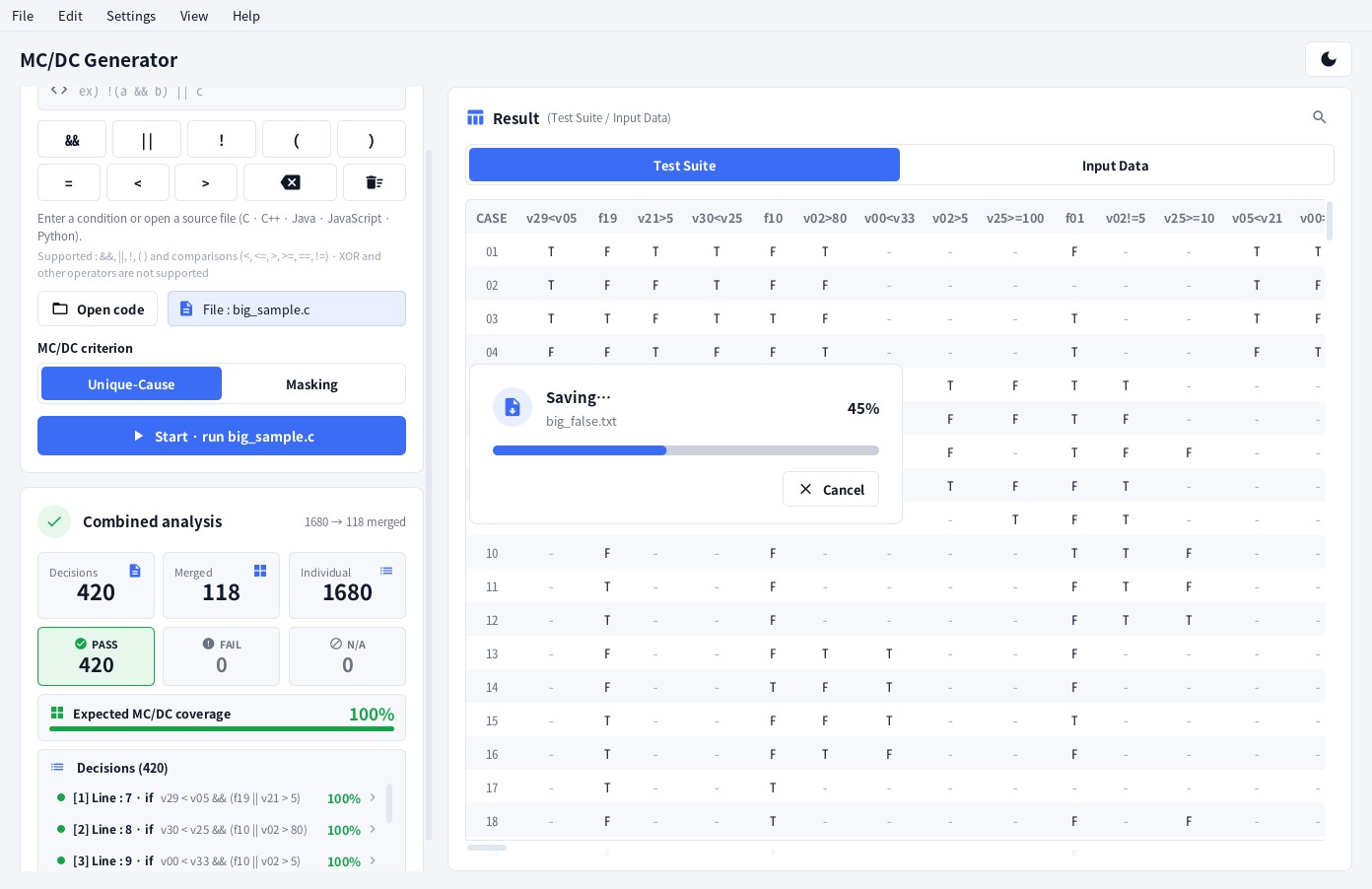
While a file is being saved, a Saving… window shows the progress in percent. Cancel stops the save - the file is replaced only after everything has been written, so a file that was already there stays as it was. The window does not appear when the save finishes at once.
Settings ▸ Blank cells (-) when saving - chooses what happens in saved files to the - of combined results (conditions and variables the row does not use) and of path variable columns: Leave as is (-) (default) · Fill automatically (conditions T) · Fill automatically (conditions F). With automatic filling, each blank condition cell takes the chosen value (T or F) and Input Data gets an input that makes the condition come out that way - not just 1 / 0 but a value fitting the condition. For a > 50, a = 51 for T and a = 50 for F; for a boolean variable b, 1 / 0. Conditions already determined by existing variable values are evaluated from those values (with a = 51 present, a > 50 is T). Expected of decisions whose conditions are all known is computed too (marked *); Expected of decisions that are not reached and conditions that cannot be interpreted stay -. The on‑screen table does not change; the txt file gets a header line stating how the cells were filled. Filled values also stay inside the declared type (an unsigned variable never gets -1). A condition that cannot take the chosen value (it conflicts with another condition, or the type does not allow it) is filled with the opposite value.
7. Settings and shortcuts
- View ▸ Theme - Follow Windows setting, Dark or Light. The sun / moon button in the title row switches directly.
- View ▸ Language - Follow system language, or one of English, 한국어, 日本語, 简体中文, 繁體中文, Deutsch, Français, Español, Português (Brasil), Русский, العربية.
- Settings ▸ Blank cells (-) when saving - whether
-cells in saved files stay as they are or are filled automatically (conditions T or F, Input Data with matching values) (section 6). - File ▸ Exit and the window's close button ask once more. If the generated results have not been saved as txt / csv you are told "Quit without saving the generated results?".
- Settings ▸ Decision details / Settings ▸ Analysis log - whether decision details and the analysis log are Always expanded or Always collapsed after a run (default: collapsed). You can still open and close them by clicking the row header or the log header.
- Window size and position, theme, language, MC/DC criterion, blank‑cell and expand settings are kept for the next run.
| Shortcut | Action |
|---|---|
| Enter | Run the condition (in the Condition box) |
| Ctrl+O | Open a source file |
| Ctrl+S / Ctrl+Shift+S | Save txt / Save csv |
| Ctrl+L | Clear input and result |
| Ctrl+Shift+C | Copy the analysis log |
| Ctrl+F | Find in analysis log |
| Shift+Wheel | Scroll a wide table horizontally |
| F1 | Manual |
| Esc | Close a dialog |
8. Notes and limits
- The N+1 guarantee holds for singular Boolean expressions. With duplicate or strongly coupled conditions the program still generates a suite and tells you which conditions' independent effect could not be shown. With the Masking criterion, an expression in which a condition occurs more than once is still covered with executable cases only. Where conditions are tied together so that no N+1 cases can all run, the Unique‑Cause suite can have more than N+1 cases (Fallback).
- Input values are examples: any values that produce the same truth values are equally valid.
- The same function call used twice (
getc() == 'a' || getc() == 'b') may return different values, but it is handled as one value. Check the input values of such conditions yourself. - The Android version of the app uses the same algorithm and engine. The features that are new in this manual (expected MC/DC coverage, Why FAIL, EQ‑Robin · Fallback and others) are coming to the Android app soon; after that update both versions produce the same results.
9. Contact
CoverageLab · astesia@me.com
Website : coveragelab.kr